
How to Crop a Video (Right Ratio, Right Frame)
By the CompressVid Team — we build CompressVid, a free online video cropper. Disclosed interest: we make the tool linked in this guide. Facts below are checked against the product and public docs on the dates noted; platform specs change, so re-check before you rely on them.
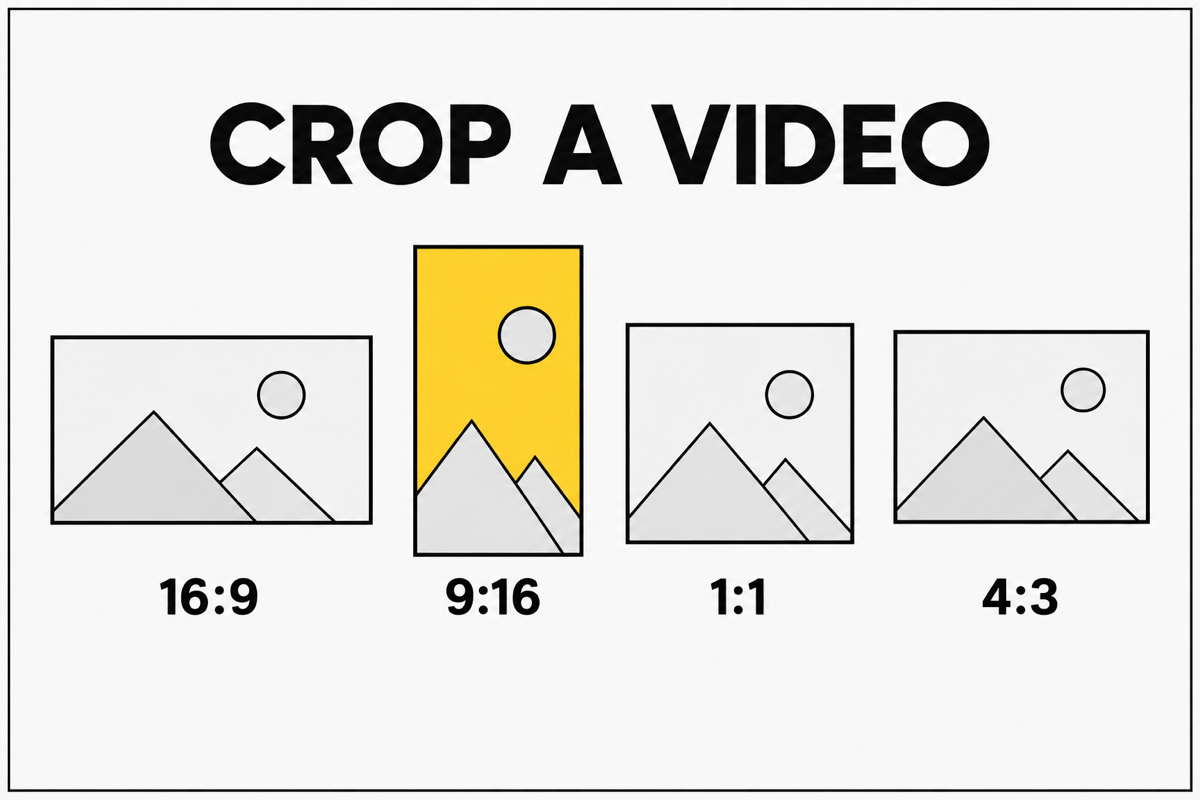
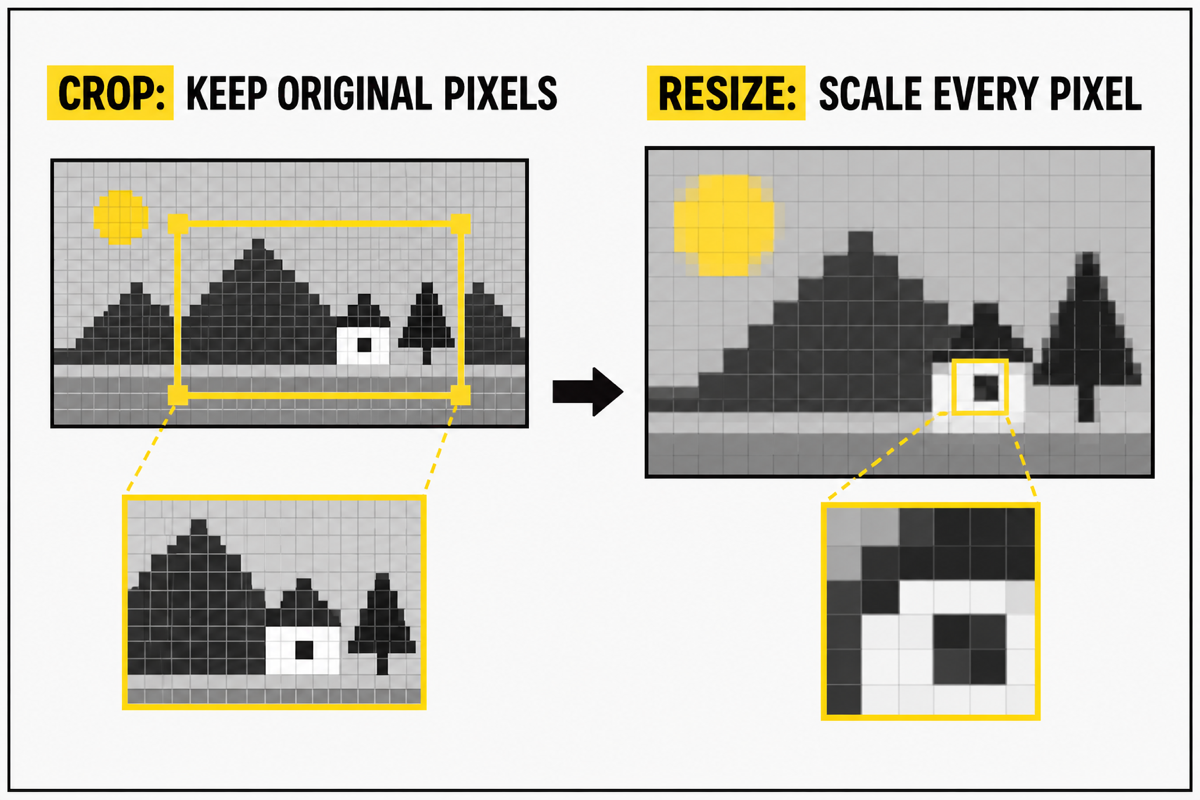
To crop a video is to choose which rectangle of the frame survives — drag a crop box over the picture (or snap to a ratio like 16:9, 9:16 or 1:1), export, and everything outside that rectangle is gone. Pixels inside stay sharp; the video is not scaled just because you cropped it.
People crop for three reasons: the aspect ratio is wrong for the destination (horizontal clip into a vertical feed), something unwanted is in the frame (a coffee cup, a second monitor, a house number), or the subject is off-center because the camera was pointing somewhere else. This guide covers how to pick the right ratio, where to put the box, how crop differs from resize, and the export numbers you should expect.
Crop is not resize — and the difference matters
| Crop | Resize / scale | |
|---|---|---|
| What changes | Which part of the picture is kept | How many pixels the picture is made of |
| Pixel count inside the subject | Unchanged (original pixels) | Changed (resampled) |
| Typical use | Cut away edges; change aspect ratio by cutting | Fit a required width × height |
| Sharpness | Keeps source sharpness in the kept area | Softens slightly when scaling down; invents nothing when scaling up |
| Duration / bitrate | Unchanged | Unchanged (unless you also compress) |
A 1920×1080 clip cropped to 1:1 at 1080×1080 keeps 1080 rows of original pixels. The same clip resized to 1080×1080 scales the whole frame into a square — subject smaller, sides distorted or letterboxed depending on the fit mode.
Rule of thumb: crop first to choose the composition, resize only when a platform demands a specific pixel size (1080p, 720p, 1:1 feed). If both are needed — crop to 9:16, then resize to 1080×1920 — do them in that order so the scale works on the already-correct rectangle.
For the scaling half of that pipeline, see how to resize a video.
Pick the ratio from the destination, not from the source
Every destination has a shape. Start from where the video is going, then position the box on the subject.
| Destination | Ratio to crop to | What usually happens to a 16:9 source |
|---|---|---|
| YouTube, slideshows, widescreen embeds | 16:9 | Often a no-op on camera footage — cleanup only on mixed sources |
| TikTok, Reels, Shorts, Status | 9:16 | Crop the horizontal frame down to a tall center strip; subject must be centered |
| Square feeds, some thumbnails | 1:1 | Equal sides; trim left/right on a 16:9 source |
| Presentations, classic video, some LMS | 4:3 | A soft crop from 16:9 — modest side loss |
| Exact custom box | Free / custom | Type width, height, X, Y when a spec sheet names pixels |
Ratios are shapes, not sizes. 9:16 describes a tall rectangle; whether it is 608×1080 or 1216×2160 is a separate choice (see the resolution table below).
If the platform letterboxes or crops for you, check its help center first. Some feeds auto-reframe in the app; others reject or pillarbox anything that is not already the preferred ratio. Cropping yourself is how you control which part of the frame gets kept — auto-reframe usually centers, and your subject is not always in the center.
How to crop a video — four steps
1. Upload the video
Open the video cropper and drop in MP4, MOV, WebM, MKV, AVI or another common format. The frame loads in the page with a crop rectangle over it.
Guests can crop up to three files per day, each up to 250 MB, without an account. Signing in raises the file-size ceiling and adds monthly credits; the crop flow is the same.
2. Choose the ratio
Snap to 16:9, 9:16, 1:1 or 4:3 to lock the shape. Pull a corner and the other dimension follows, so the box cannot drift into an accidental 13:7.
Need something else? Switch to Free and drag any corner, or type exact numbers.
3. Position the frame
- Drag the rectangle to move it. Everything inside is kept; everything outside is discarded at export.
- Pull a corner to resize (ratio-locked when a preset is active).
- Type W / H / X / Y for exact pixels. Dimensions snap to even numbers (video encoders want even sizes); the box is clamped so it cannot leave the frame.
- Watch the readout. The panel shows the output resolution as you drag — e.g. 1920×1080 source at 1:1 centered becomes 1080×1080.
Where to put the box. Give the subject look-room in the direction they face, keep eyes on the upper third for talking heads, and do not slice through chins or logos. For 9:16 from a horizontal source, the tall strip is usually centered — if the speaker stood stage-left, shift the box before you export or the clip will show the empty half of the room.
4. Export
Press Crop video. The kept rectangle is encoded to MP4 at the cropped resolution. No watermark, nothing burned into the frame.
Download stays valid for about 4 hours; save the file before then. We do not keep a permanent archive of your footage.
Output resolution cheat sheet
| Source frame | Crop preset | Output resolution |
|---|---|---|
| 1920 × 1080 | 1:1 | 1080 × 1080 |
| 1920 × 1080 | 9:16 | 608 × 1080 (tall center strip) |
| 1920 × 1080 | 4:3 | 1440 × 1080 |
| 3840 × 2160 (4K) | 9:16 | 1216 × 2160 |
| 1080 × 1920 (vertical source) | 16:9 | 1080 × 608 |
| 3840 × 2160 (4K) | 16:9 | 3840 × 2160 — already that shape |
Numbers assume the largest inscribed rectangle of the chosen ratio. Move the box and the resolution stays; only the framing changes. Precision inputs snap to even pixels.
Cropping does not shorten the video or lower bitrate, so file size stays close to the source. If the result also needs to be lighter (a 9:16 strip of a 4K master is still huge), crop first, then compress to a target size.
Common mistakes
Cropping when you should resize. If the framing is already right and the platform wants 1080×1920 specifically, scale — do not throw away edges just to hit a shape.
Slicing through the subject. Zoom is not crop. If the subject is too small, that is a shooting or upscaling problem; a tighter crop that cuts the head is worse than a wider crop with dead space.
Forgetting to re-check the export. Watch the kept range once after export, especially when the source had motion near the edges. The preview rectangle shows the geometry; the encoded file is the proof.
Cropping vertical into horizontal without a plan. 9:16 → 16:9 keeps a thin horizontal band. Fine for a face-to-camera clip if the head is centered; useless for a wide scene. Shoot or reframe for the destination instead.
Doing crop → compress → crop. Pick composition once (crop), then size once (resize/compress). Each re-encode spends a little quality; do not chain three passes to avoid making a decision.
Crop on a phone
The same steps work in mobile Safari and Chrome: open the cropper, pick the clip, tap a ratio chip, drag the box with a finger, export.
A phone makes 9:16 feel natural (the screen is already that shape) and 16:9 awkward (small preview). Rotate to landscape when you need to place a horizontal crop precisely. For touch, corner handles are large enough to hit; pinch is not supported — use Free + drag.
Native phone editors crop too. They are fine for a quick gallery export. A browser cropper is better when you want locked ratios, exact pixel inputs, and a predictable MP4 output without an editor project.
FAQ
How do I crop a video without losing quality?
Crop, do not rescale. The kept rectangle keeps its original pixels — a 1080×1080 crop of a 1080p source is as sharp as that area was in the source. Quality drops when you scale up, crush the bitrate, or re-encode many times.
What is the difference between crop and trim?
Trim changes time (where the clip starts and ends). Crop changes space (which rectangle of the picture survives). Often both: trim to the right moment, crop to the right frame.
What is the difference between crop and resize?
Crop cuts away edges and keeps the remaining pixels at their original size. Resize scales the whole picture to new pixel dimensions. Crop = composition. Resize = specification.
Which aspect ratio should I use?
Match the destination: 16:9 for YouTube and slides, 9:16 for TikTok / Reels / Shorts / Status, 1:1 for square feeds and many thumbnails, 4:3 for presentations and older LMS players. When a spec sheet names pixels, use Free and type them.
Does cropping change file size?
Barely. Duration and bitrate do not change, so the size stays close to the original. If size is the problem, crop first and then compress the result.
Can I crop a video on my phone?
Yes — open the online video cropper in a browser, pick the clip, drag the frame, export. No app install. Works on iPhone (Safari) and Android (Chrome).
Will cropping fix a video that was rejected for size?
No. Rejections for file size need compression (or a shorter clip). Rejections for aspect ratio or framing are what crop fixes. Check the error text before you spend a pass on the wrong operation.
Do I lose the audio when I crop?
No. Audio is carried through with the picture. Crop changes framing only. If the sound is the problem, mute it or edit it after.
Keep going
- Frame it in the browser: crop a video
- Wrong length, not wrong frame? How to trim a video online
- Right frame, wrong pixel size? Resize video
- Still too heavy after cropping? Compress to a target size
- Codec and bitrate fundamentals: video compression basics
Sources & method
- Crop presets (16:9 / 9:16 / 1:1 / 4:3 / Free), even-pixel alignment, output resolutions in the table, guest limits (3 files/day, 250 MB each) and the 4-hour download window reflect CompressVid’s crop tool as shipped, checked 2026-10-13. The tool page is authoritative if anything drifts.
- Destination ratios follow each platform’s published preferred aspect (YouTube 16:9, vertical feed apps 9:16, square feed posts 1:1). Platforms reframe in-app sometimes — the help center wins over this table when they disagree.
- Crop vs resize wording matches standard encoder / editor definitions (crop = select rectangle; scale = resample). Output sizes are geometric (
min side of source × ratio), not round marketing numbers. - We built the cropper linked above. We did not receive platform engineering input; specs change without notice — verify before a production deadline.