
How to Trim a Video Online (Exact Cuts, No Install)
By the CompressVid Team — we build CompressVid, a free online video trimmer. Disclosed interest: we make the tool linked in this guide. Facts below are checked against the product and public docs on the dates noted; platform rules change, so re-check before you rely on them.
To trim a video online, upload the file in a browser, drag two handles (or type exact times) to mark the section you want to keep, preview that range, and export a clean MP4 — no desktop editor, no install, no watermark on the result.
That is the whole workflow. The rest of this guide is about doing it well: where to put the cut so the clip starts on the action, how to keep audio in sync, how much smaller a trimmed file actually gets, and when trimming is the wrong tool entirely (hint: if the problem is file size, not length).
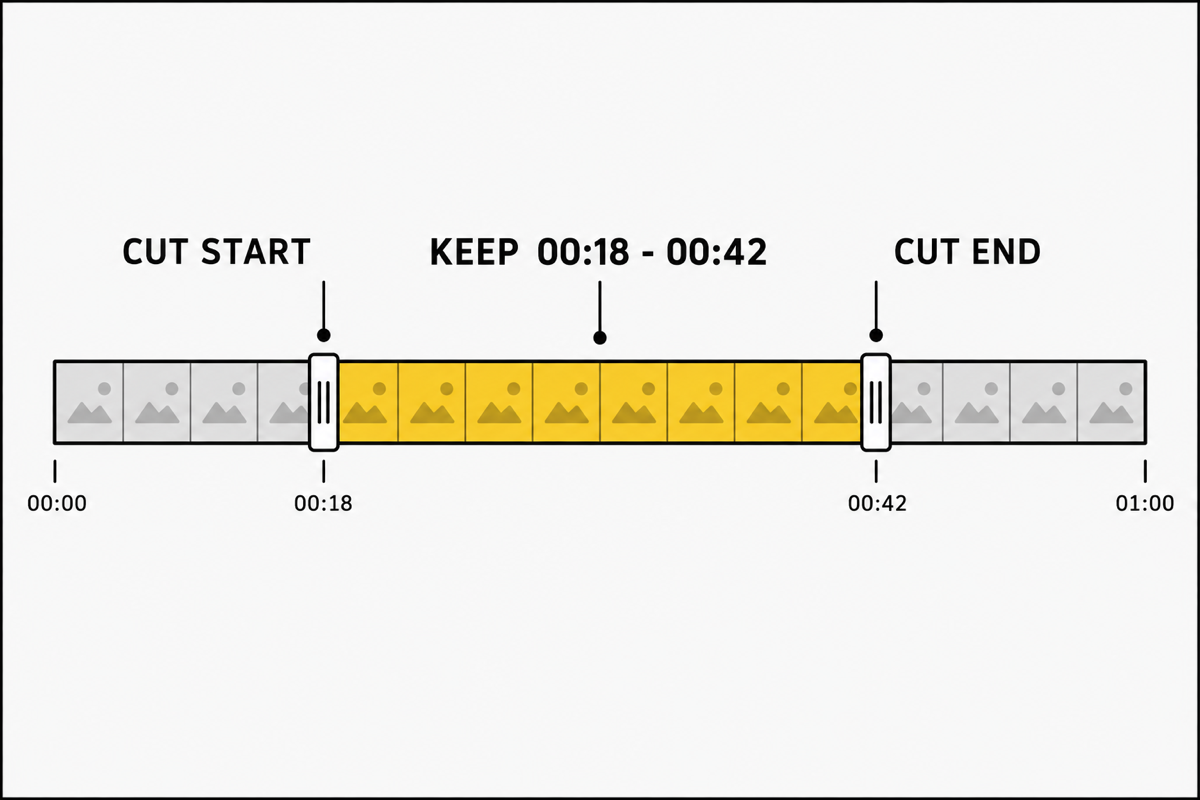
What trimming actually changes
Trimming removes time from a video. The kept section keeps its original resolution, frame rate and (if present) audio. Everything outside the start and end points is gone from the output file.
Three things people often confuse with trimming:
| Action | What it does | Output |
|---|---|---|
| Trim | Keep one continuous range | One shorter file |
| Split | Cut a file into two pieces | Two files |
| Compress | Re-encode at a lower bitrate | Same length, smaller file |
This guide covers the first row. If you need to remove a middle section, that is two trims (keep part A, keep part B) or a real editor’s ripple delete. If the clip is the right length but too heavy for an upload limit, go straight to how to compress a video instead.
How to trim a video online — three steps
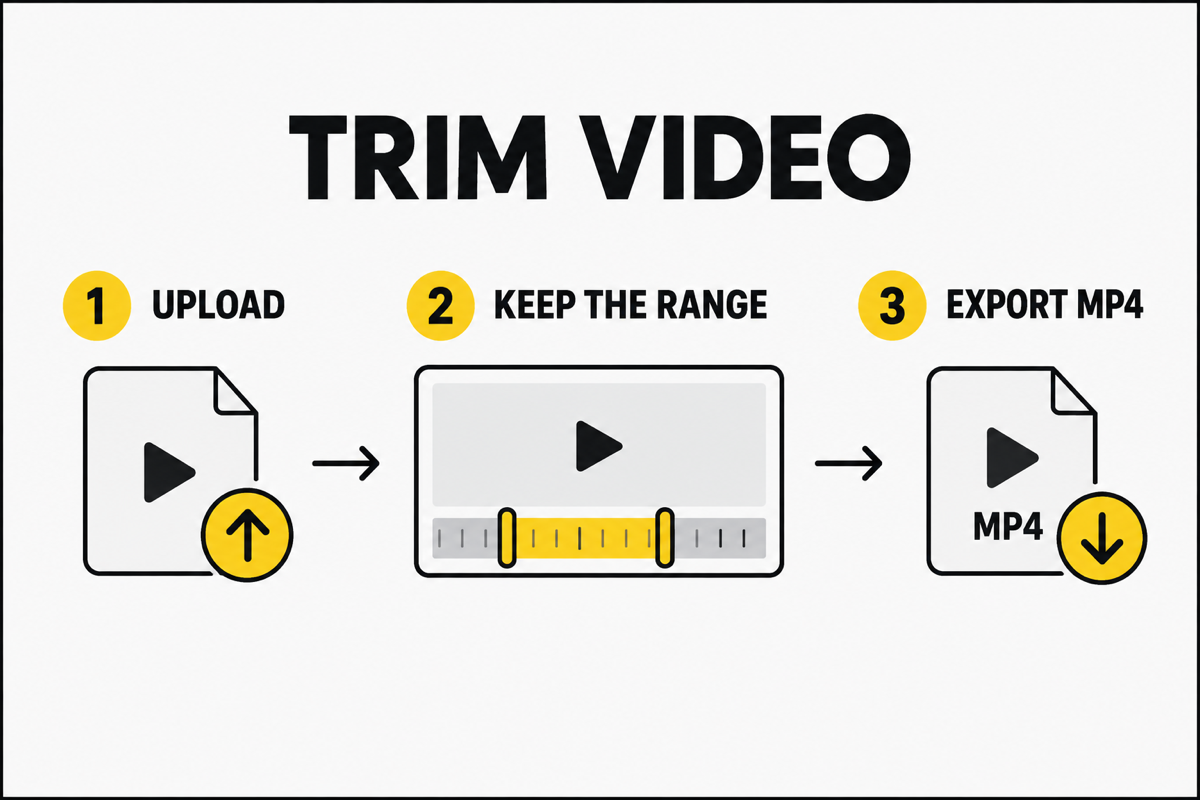
1. Upload the video
Open the video trimmer and drop in the file. Common formats work: MP4, MOV, WebM, MKV, AVI and most others a camera or phone produces.
The preview loads in the page, so you can watch while you decide what to keep. Nothing installs on your machine; the cut is made on our servers and the result is offered as a download.
Guests can trim up to three files per day, each up to 250 MB, without an account. Signing in raises the file-size ceiling and adds monthly credits for heavier work — the trim flow itself does not change.
2. Set the start and end points
This is where quality is won or lost — not encoder settings, but where the handles sit.
- Drag the two handles on the timeline. The kept range is highlighted; everything outside it is dimmed.
- Type exact times when you know them. The timecode fields accept
00:00:18.00style values (hours:minutes:seconds.centiseconds) or plain seconds. - Scrub to check. Dragging a handle seeks the preview to that frame, so you see the actual in-frame before you commit.
- Fine-tune with the keyboard. Arrow keys nudge by 0.1 s; Shift+arrow by 1 s. Useful when the cut has to land on a word, not “about there.”
- Preview the kept range. Press Preview (or Space) to play from the in-point and stop at the out-point. If it feels right in one pass, export.
Optional: Fade in / Fade out softens the audio at the ends of the kept range. Fade only applies when the source has an audio track — a silent clip has nothing to fade.
Where to cut, practically. Most raw clips share the same three defects: a dead half-second at the start while the camera settles, a fumbled ending where someone reaches for stop, and a middle nobody will watch. Put the in-point on the first frame of real content (not on the operator’s “okay, going”), and the out-point before the drop in energy at the end. A clip that starts on the point and stops on the point gets watched; a clip that opens on table noise does not.
3. Export the trimmed clip
Press Trim video. The kept section is re-encoded to a standard MP4 (H.264 + AAC when audio is present). Download it when it is ready.
- No watermark is burned into the picture.
- Audio stays locked to picture — both tracks are cut in the same pass, so dialogue does not drift.
- Cuts land where you put the handles. The export re-encodes the kept range, so you are not stuck snapping to a distant keyframe and inheriting a stray frame of the wrong shot.
- The download link stays valid for about 4 hours. Save the file to your device or drive before then; we do not keep a permanent archive of your footage.
How much smaller does a trimmed video get?
Trimming does not compress — it removes duration. Because size roughly follows bitrate × duration, cutting time cuts bytes almost proportionally:
| Original | Keep | Approximate size of the result |
|---|---|---|
| 60 s | 10 s | ≈ 1/6 of the original |
| 60 s | 30 s | ≈ half |
| 5 min | 60 s | ≈ 1/5 |
| 5 min | 90 s (e.g. Status) | ≈ 30% |
| 20 min lecture | 3 min answer | ≈ 15% |
| Any length | Drop 5 s of dead air | Those 5 s, proportionally |
Estimates assume the kept section exports at a similar quality level to the source. Exact bytes depend on codec and bitrate.
If the trimmed file still will not fit an upload cap, run it through the compressor with a target size — trim first (so you are not spending bits on footage nobody sees), then compress what remains.
Precision matters more than people expect
Frame-level cuts. Some browser trimmers only cut at keyframes, which can leave a fraction of a second of the wrong footage on either end. Re-encoding the kept range puts the cut exactly on the handle.
Quality is not the trimmer’s job. You are removing time, not detail. The kept section keeps its source pixels. “Lossless trim” in marketing usually means “we did not crush your bitrate” — not that the file is bit-identical to a segment of the original.
A/V sync. Cutting video and audio in one pass keeps them locked. Cutting them separately (video in one tool, audio in another) is how people end up with a voice that leads the mouth by two frames.
Container and codec. The export is MP4 + H.264, the most compatible pairing for web, chat apps and players. If your source was MOV/HEVC or MKV and a site rejected it for format (not size), trimming to MP4 often fixes that as a side effect. For a pure container swap with no cut, use a converter instead.
Common jobs, and the right first move
| Job | First move | Why |
|---|---|---|
| Clip runs past a platform’s length limit | Trim to the strongest segment | Length is the blocker, not bitrate |
| 6-minute screen recording for a 20-second point | Keep only the demo | Dead air is why the file feels long |
| Lecture where the answer starts at 12:04 | Export 12:04–15:30 as its own clip | People search for the answer, not the preamble |
| False starts and retakes at the head | In-point on the first good take | Editors and viewers both skip rough heads |
| File size is the problem | Compress to a target size | Trimming alone will not hit a byte cap |
| Sound is noise or copyrighted | Mute the video or edit audio | Length is fine; the track is not |
| Need a ringtone or soundbite | Trim the segment, then pull the audio | Video trim first keeps the moment exact |
How to trim on a phone without installing an app
The same three steps work in mobile Safari or Chrome:
- Open the trim tool in the browser.
- Choose the clip from Photos / Gallery. (If iOS offers HEVC, the export is still MP4 — which most feeds accept more readily.)
- Drag the handles on the timeline. Landscape makes the timeline easier to hit; pinch is not required.
- Export and save the MP4 to Files / Downloads, then upload it to the app that asked for a shorter clip.
Native editors (Photos, iMovie, Google Photos) can trim too. They win for rough cuts already in the gallery. A browser tool wins when you want exact timecodes, a preview of the kept range only, and a clean MP4 without bouncing through an editor’s export dialog.
Desktop editors (Premiere, DaVinci, Final Cut, CapCut) are still the right place for multi-clip stories, captions and color. Use them when the trim is part of an edit. Use a trimmer when the trim is the edit.
FAQ
How do I trim a video online for free?
Open the online video trimmer, upload the file, set start and end (drag or type), preview the kept range, and download the MP4. Guests can trim up to three files a day, each up to 250 MB, with no account and no watermark.
Does trimming reduce video quality?
No — trimming removes time, not detail. The kept section exports at its source resolution. Quality loss shows up when you compress (lower the bitrate), which is a separate step.
What is the difference between trim and cut?
In everyday language they overlap. In tools, “trim” usually means keep one continuous range from a longer file. “Cut” can mean remove a section, split a file, or just shorten it. If you need one continuous keep, you want trim.
Can I trim a video without re-encoding?
Stream-copy trims (no re-encode) are fast but only cut cleanly at keyframes, so the start and end can be slightly off. Re-encoding the kept range — what this tool does — costs a little time and lands the cut exactly where you put it.
How do I trim a video on iPhone or Android?
Open the trim tool in the browser, pick the clip, drag the handles, export. No app install. On iPhone, Safari works; on Android, Chrome works. Save the MP4 to Files or Downloads before uploading it to the target app.
Is there a free video trimmer without a watermark?
Yes. Trimming at compressvid.io/trim-video is free to use and exports carry no watermark. Guests get three files a day up to 250 MB; signing in adds monthly credits for more.
How much does file size drop after trimming?
Roughly with the time you remove: keep half the duration and you get about half the bytes at the same quality. Keep 10 s of 60 s and expect about one-sixth. If you need a hard byte target, trim first, then compress.
Can I trim only the audio of a video?
Not with a video trimmer — that keeps picture and sound together on purpose. For audio-only work (cut a ringtone, change volume, fade), use the audio cutter. To pull audio out entirely, see video to MP3.
Keep going
- Do the cut in the browser: trim a video online
- Still too heavy after trimming? Compress to an exact file size
- Wrong edges, not wrong length? How to crop a video
- Sound is the problem? Mute video · Edit audio
- Compression fundamentals (bitrate, codecs): video compression basics
Sources & method
- Workflow, timecode format, fade behavior, guest limits (3 files/day, 250 MB each) and the 4-hour download window reflect CompressVid’s trim tool as shipped, checked 2026-10-13. Product rules can change; the tool page is authoritative.
- “Trim vs split vs compress” distinctions follow common editor terminology (Premiere, Final Cut, DaVinci), not a single vendor’s marketing copy.
- Size ratios in the table are proportional estimates from
size ≈ bitrate × durationat similar quality — see video compression basics for the math. They are guidance, not a byte-for-byte promise for every codec. - We built the trimmer linked above. We did not receive platform engineering input; length limits belong to each platform’s help center and change without notice.