
How to Make an iPhone Ringtone (Create and Install)
To make an iPhone ringtone using Apple’s documented workflow, import an unprotected audio file into GarageBand, choose up to 30 seconds, then share and export it as a ringtone. Our MP3-to-M4R converter can prepare an AAC ringtone file, but downloading or copying that file does not automatically install it in Settings.
We build CompressVid and have a commercial interest in recommending it. We checked Apple’s instructions on October 13, 2026, and measured an actual M4R conversion using our own generated tone. We did not perform a new physical-iPhone installation test.
Making the file and installing the ringtone are separate
A file converter changes or prepares the audio format. The iPhone still needs a supported workflow to register and assign the sound as a ringtone. A successful download is not evidence that a tone appears in your phone’s list.
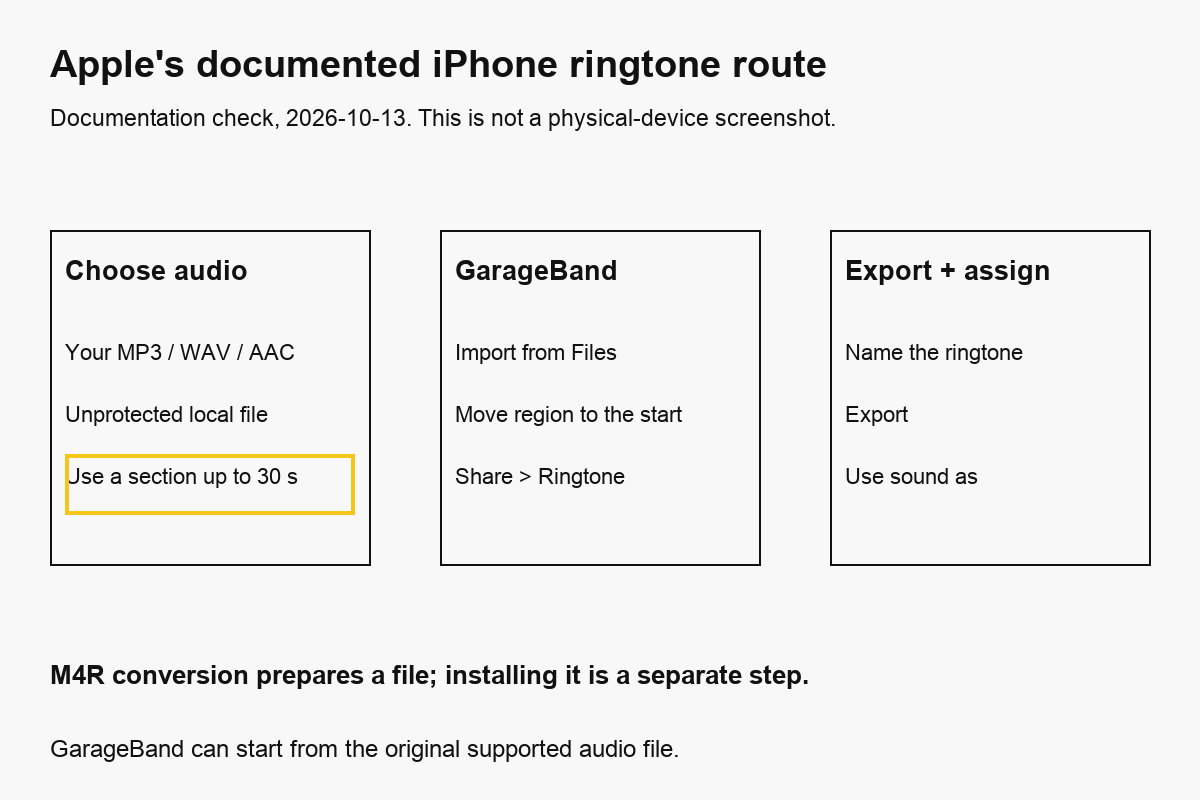
Apple’s custom ringtone instructions provide a complete GarageBand route, including choosing the audio, exporting and assigning it. You can begin with a supported original MP3, WAV or AAC source; converting it to M4R first is not required for that workflow.
| What you have | What it accomplishes | What still needs to happen |
|---|---|---|
| Original MP3, WAV or supported AAC audio | A source to edit or import | Choose a section and export/register a ringtone |
AAC file named .m4r | A prepared ringtone-format file | Use an installation method supported by your device and software |
| GarageBand project | A place to arrange and trim audio | Share → Ringtone → Export |
| Exported and assigned GarageBand ringtone | A sound registered through that workflow | Check the selected tone and actual playback |
Menu labels and available import methods can change with software versions. If you see another direct ringtone command on your device, follow the current device instructions for it. This guide documents the verified Apple GarageBand route rather than promising that every iOS version uses the same file-sharing menu.
Choose a source you can actually use
Use a recording, sound effect or music file you have permission to process. Buying or subscribing to music is not a general permission to redistribute it. This converter handles a file you upload; it does not download protected tracks or remove DRM.
Apple says a song from the Music library must be downloaded to the iPhone. If it appears dimmed, it may be protected or not downloaded. Apple explicitly states that a protected file cannot be used for a ringtone in this workflow.
For the simplest example, record a short original sound or use an unprotected local audio file. Avoid a source that already clips or contains loud background noise. Converting to AAC cannot repair a distorted recording.
If the sound is inside your own video, the audio editing guide explains how to export it separately. Choose WAV or another supported source for further editing when avoiding another lossy compression stage matters.
How long should an iPhone ringtone be?
Use up to 30 seconds for Apple’s documented GarageBand export. We checked this limit in Apple Support on October 13, 2026. If a GarageBand ringtone is longer, Apple describes choosing Continue to let GarageBand shorten it, or Cancel to edit the section yourself.
Older tutorials often say “under 40 seconds.” That is not the limit in the Apple workflow cited here. We corrected our tool’s related guidance to use 30 seconds for this route. Do not treat one workflow’s limit as a claim about every historical sync method or operating-system version.
| Example section | Duration | Suitable starting use |
|---|---|---|
| 5–10 seconds | A short phrase or effect | A brief alert-style sound |
| 15–25 seconds | A recognizable hook | A compact call ringtone |
| Up to 30 seconds | A longer selected hook | Apple’s documented GarageBand maximum |
| More than 30 seconds | Too long for that export unchanged | Trim manually or let GarageBand shorten it |
These suggested shorter lengths are editing choices, not additional Apple limits for every alert type. Leave out long silence at the start. A tone that technically plays but spends several seconds silent can be difficult to notice.
Make and install a ringtone with GarageBand on iPhone
The following steps follow Apple’s current support article. They are a documentation check, not screenshots from a device test.
1. Start a project and find the source
Install GarageBand if you do not have it. On the Home screen, touch and hold its icon and choose Create New Audio Recording. In GarageBand, open Tracks, select the instrument track, and open the Loops Browser.
Choose Files, then Browse items from the Files app for a file on the device or in iCloud. For a permitted, downloaded library song, Apple describes the Music tab. A protected item is not usable through that method.
Apple’s GarageBand import guide lists AIFF, WAV, Apple Loops, AAC and MP3 audio. It also advises setting the song section length to Automatic when you want to import the whole file. Otherwise, the initial section can limit how much is imported.
2. Place and trim the region
Touch and hold the file, then drag it into Tracks view. Choose the section you want by moving the region’s edges. Apple describes holding an edge to zoom for more precise editing.
Keep the ringtone up to 30 seconds, then move the selected region all the way to the left so there is no blank gap before the sound. Listen to the opening and ending. A strong cut at an arbitrary waveform position can sound abrupt; a fade may help, but it should not hide the part you want to hear.
3. Share and export
Open the navigation control and choose My Songs. In the browser, choose More, Select, select the project, and tap Share → Ringtone.
Give the ringtone a clear name and tap Export. If it exceeds 30 seconds, GarageBand offers to shorten it. Cancel and revise the region if automatic shortening would remove the best moment.
4. Assign and verify
When export finishes, choose Use sound as. Apple lists Standard Ringtone, Standard Text Tone, or Assign to contact. You can also choose Done and assign it later through the available settings.
Play the assigned tone and check that it starts promptly and contains the intended section. A successful GarageBand export does not guarantee how every contact setting, silent mode or alert configuration behaves. Verify the particular use you care about on your device.
Prepare an M4R file in a browser
The MP3-to-M4R tool accepts common audio sources, including MP3, M4A and WAV. Use it when your chosen workflow specifically needs a prepared .m4r file.
Set Start and End in seconds. For our test, Start 5 and End 35 selected a 30-second section from a 45-second original tone. Leaving both fields empty converts the whole source; the converter does not automatically impose Apple’s 30-second GarageBand limit.
Optional fade-in and fade-out controls affect the export. The current interface does not let you choose their duration or curve. The source player is not a test of the encoded fades. Download and listen to the result, especially for a short or quiet phrase.
Exporting uploads the source to FreeConvert. Keep protected, private or policy-restricted material in an approved local workflow instead. Download promptly because the product link is temporary, about four hours; our privacy policy explains why link expiry and provider retention are separate.
The output is AAC in an MPEG-4 container, named .m4r. That is preparation, not installation. AirDrop or copying a file alone is not a general guarantee that it will appear in Settings. For the documented GarageBand route above, start from its supported original audio source.
What our 30-second M4R export contained
On October 13, 2026, we generated a 45-second 440 Hz tone as a 192 kbps MP3. We submitted the actual product audio job builder with Start 5, End 35, M4R output and both fades enabled.
| Measurement | Downloaded M4R |
|---|---|
| Duration reported by ffprobe | 30.000 s |
| Audio codec | AAC |
| Sample rate | 44,100 Hz |
| Channels / audio streams | Mono / 1 |
| Video streams | 0 |
| File size | 434,744 bytes |
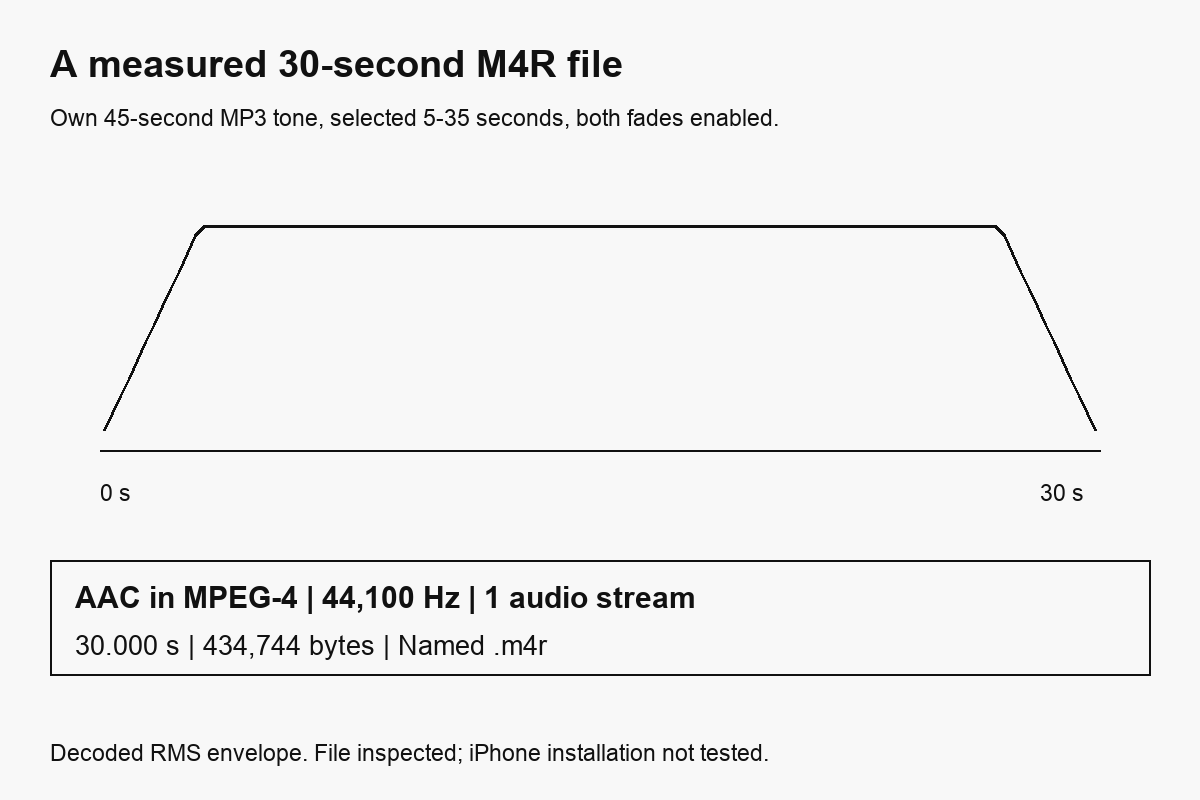
The public measurement record contains the generation command, requested settings, actual container path and output hash. We inspected the file and decoded its sound. We did not establish installation on an iPhone or compatibility with every transfer method.
The converter requests an M4A/AAC encode and applies the .m4r export name. This avoids treating M4R as a different audio codec. The resulting file size depends on the content and encoding; a 128 kbps budget is about 480,000 audio bytes for 30 seconds before container overhead, not an exact final-size promise.
Why renaming an MP3 is not conversion
Changing song.mp3 to song.m4r does not change the MP3 audio or its container. An application that expects AAC in MPEG-4 does not receive that structure merely because you typed another extension.
An AAC-containing M4A file and an M4R ringtone file can use the same underlying audio/container structure. But not every M4A file is AAC: M4A can also contain other codecs, such as ALAC. Check the actual contents rather than assuming that all extensions describe the same sound.
AAC conversion is lossy when starting from a decoded MP3. It cannot restore quality already lost in the source. Use a good original, avoid repeated conversions, and judge the result at a reasonable listening level.
For a local preparation step:
ffmpeg -ss 5 -t 30 -i input.mp3 \
  -af "afade=t=in:st=0:d=1,afade=t=out:st=29:d=1" \
  -c:a aac -b:a 128k -f ipod ringtone.m4r
Here -t 30 is a duration, and the local fade durations are explicitly one second. The ipod muxer writes the audio-oriented MPEG-4 container even though the filename ends in .m4r. These settings differ from the hosted provider’s fade defaults.
Check the file with:
ffprobe -v error -show_streams -show_format -of json ringtone.m4r
A container inspection is not an installation test. Use the documented workflow appropriate for your device to register the tone.
How we checked, and what we did not
We read Apple’s ringtone and GarageBand import guides on October 13, 2026, including the 30-second rule, protected-file restriction, supported audio imports and assignment options. We ran the hosted M4R conversion and the local FFmpeg preparation command using only generated tones.
The figures are a documentation-based workflow diagram and measurements of an actual file, not iPhone screenshots. We did not test new physical-device installation, compare ringtone loudness on phone speakers, or bypass protected music. Product API measurements do not independently verify billing.
Questions before you export
Do I need M4R before using GarageBand?
No. Apple documents importing supported audio sources and exporting the project as a ringtone. Preparing M4R is for a workflow that specifically requires that file.
Why is my song gray in GarageBand?
Apple says it may be protected or not downloaded to the iPhone. Download a permitted source where appropriate; a protected file cannot be used for a ringtone through that workflow.
Why does my ringtone start with silence?
Check both the source and the region’s position in the project. Apple directs you to move the chosen region all the way to the left before export.
Will buying a song make every use legal?
No universal permission follows from a purchase. Use audio you are allowed to process and follow the applicable rights and service terms.