
How to Edit Audio in a Video (Trim, Volume and Fades)
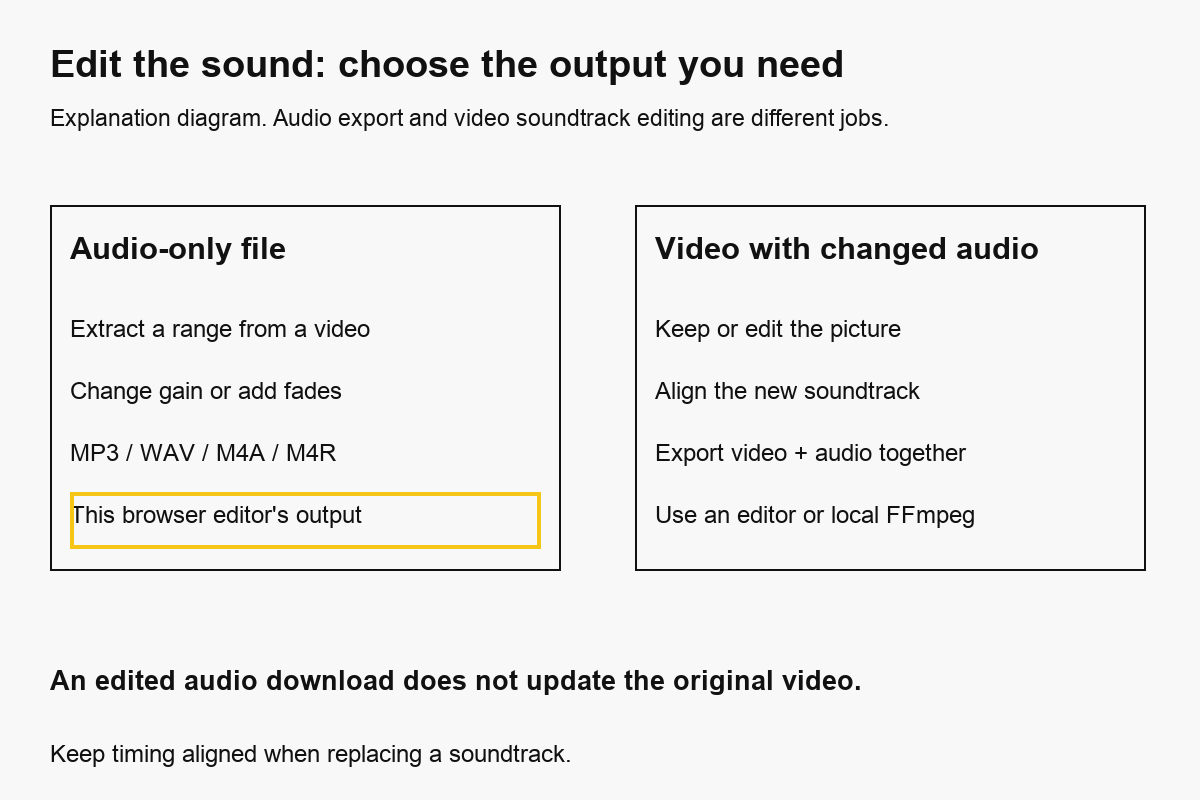
To edit audio in a video and keep a video file, change the soundtrack in a video editor or with FFmpeg, then export picture and sound together. Our audio editor can extract, trim, change volume and fade a video’s sound, but its output is an audio-only file. It does not automatically write the edited track back into the original MP4.
We build CompressVid and have a commercial interest in recommending it. We tested the hosted audio settings and a local video-editing command with our own synthetic material on October 13, 2026. The measured outputs are not a listening-quality ranking or a physical-device test.
Decide whether you need sound or a finished video
Choose the output before editing. An audio-only download is useful for a podcast clip, a separate recording, or material you will import into another project. A video with altered sound requires a workflow that exports both streams together.
This distinction is easy to miss when an audio tool accepts MP4 uploads. Accepting a video as input does not mean it returns a video. Our audio editor’s format buttons are MP3, WAV, M4A and M4R. Each produces sound without the picture.
| Your goal | Suitable workflow | What to check |
|---|---|---|
| Keep the picture, make its sound quieter | Video editor or local FFmpeg audio filter | Video and audio are both present |
| Download an edited soundtrack separately | Audio editor with the video as input | Output is audio-only, as intended |
| Remove all embedded sound | Mute video | No audio streams in the exported MP4 |
| Remove a noisy middle section | Editor with multiple cuts and joining | Timing and transitions after the cut |
| Add narration or background music | Multitrack video editor or mixing workflow | Alignment, balance and rights |
| Remove wind but keep speech | Dedicated noise reduction or source separation | Speech remains intelligible |
A volume slider changes the level of everything in the selected track. It does not distinguish a voice from traffic or remove one speaker. A fade changes the beginning or ending envelope; it does not repair distortion already recorded into the source.
How to edit a video’s audio online
1. Upload the recording and choose one range
Open the audio cutter and editor and select the video. Common video extensions are accepted, but the actual codec and file integrity still determine whether decoding works. The source must contain an audio track.
Choose Start and End around the part you need. For a ten-second recording, Start 2 and End 8 select a six-second section. The editor keeps one continuous range per export. Two separate downloads do not automatically join into one file or remove the gap from a finished video.
The range preview helps locate the entry and exit. It plays the source; gain and fade settings are applied on export. Listen to the downloaded result before using it, particularly when fades could cover a short word or a quiet opening.
The preview is local, but export uploads the source file to FreeConvert. A six-second selection does not mean only six seconds of the file are uploaded. Use an approved offline workflow for recordings that must stay on your device.
2. Adjust gain without assuming “louder” fixes everything
The volume setting runs from 0% to 300%, with 100% as the default. A setting of 50% halves signal amplitude, roughly −6.02 dB. It does not necessarily sound “half as loud,” because perceived loudness depends on the material and listening conditions.
Increasing gain also increases background noise. If peaks exceed the available output range, clipping can occur. A loud distorted recording may need repair or a better source rather than another boost. Check both the loudest moment and quiet speech before accepting the file.
A 0% setting can create a silent audio stream. It is not proof that the file contains no audio track. For a track-free video, use the mute tutorial and inspect the exported streams.
3. Add fades only where they help
Fade in makes the opening rise from silence; fade out makes the ending fall toward silence. The current browser controls are checkboxes, not adjustable fade-duration or curve controls.
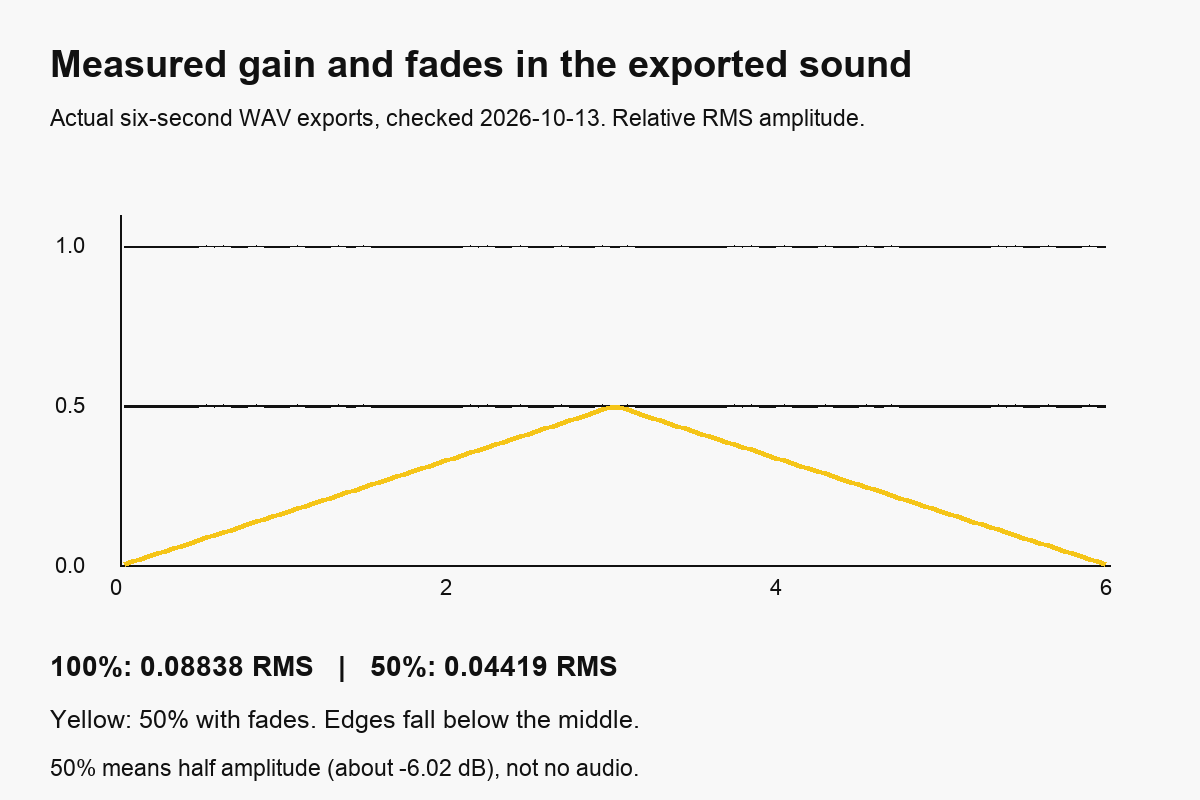
Our six-second test with both fades enabled showed a rise across the first half and a fall across the second half. The effects covered essentially the entire short selection. That can suit a tone, but it can make a brief spoken phrase harder to hear. Do not assume the checkboxes add only a tiny edge treatment.
If you need a precise one-second fade or a custom curve, use an editor with those controls or the local command below. Always audition the exported file; the source preview does not establish the final envelope.
4. Choose an audio format and inspect the download
MP3 is the page default, encoded at 160 kbps. M4A output uses AAC at 128 kbps. WAV uses 16-bit PCM, with the actual sample rate and channel count determined by the conversion. M4R is intended for a separate iPhone ringtone workflow.
| Output | Useful for | Important limitation |
|---|---|---|
| MP3 | A compact separate soundtrack | Lossy re-encoding |
| M4A, AAC in this tool | Compact audio for compatible apps | Still lossy; extension alone does not identify every M4A codec |
| WAV, PCM | Further editing without another lossy audio compression stage | Larger; cannot recover information lost in the source |
| M4R, AAC in MPEG-4 | Preparing a ringtone file | Installation is a separate step |
Download promptly because the product link is temporary, about four hours. That expiry does not prove complete provider deletion. See the privacy policy for processing and storage details.
What changed in our actual audio exports?
We ran four hosted audio exports from the same synthetic ten-second H.264/AAC video on October 13, 2026. Every job selected seconds 2–8. The source had a 440 Hz tone rather than speech or music, which made gain and fade measurements easier to reproduce.
| Setting | Duration | Audio format | Sample rate / channels | File size |
|---|---|---|---|---|
| WAV, 100%, no fades | 6.000 s | 16-bit PCM | 48,000 Hz / mono | 576,078 bytes |
| WAV, 50%, no fades | 6.000 s | 16-bit PCM | 48,000 Hz / mono | 576,078 bytes |
| WAV, 50%, both fades | 6.000 s | 16-bit PCM | 48,000 Hz / mono | 576,078 bytes |
| MP3, default 160 kbps | 6.000 s | MP3 | 48,000 Hz / mono | 121,107 bytes |
All four contained one audio stream and zero video streams. The equal WAV sizes show that changing amplitude does not necessarily reduce file size. Each PCM file contained the same number of samples.
We decoded the files to floating-point PCM and measured RMS amplitude in the middle 250 ms. The baseline was 0.08838 and the 50% output was 0.04419, an amplitude ratio of approximately 0.5. With both fades, the first and last 250 ms were approximately 0.00212, well below the middle.
The public evidence record contains job settings, stream counts, hashes and the RMS method. It also includes a fifth export: a 30-second AAC/M4R ringtone from a separately generated MP3 tone.
These are measurements from synthetic sources. They do not establish voice quality, intelligibility after denoising, or a fixed size for a different recording. RMS measures signal energy over a window; it is not a perceived-loudness or quality score.
Keep the video and edit its audio locally
FFmpeg can filter the soundtrack while copying compatible video packets. For the ten-second test source, this command lowers the whole soundtrack to 50% and applies one-second fades at the beginning and end:
ffmpeg -i input.mp4 -map 0:v:0 -map 0:a:0 \
  -c:v copy \
  -af "volume=0.5,afade=t=in:st=0:d=1,afade=t=out:st=9:d=1" \
  -c:a aac edited.mp4
The fade-out start of 9 is specific to a ten-second recording. For another duration, choose the point one second before its end. Do not paste that value into a long recording and expect the fade to move automatically.
The command selects the first video and first audio stream. -c:v copy avoids re-encoding the picture; the audio is filtered and re-encoded to AAC. Other audio languages, subtitles and attachments are not automatically preserved by these maps.
We ran this command with FFmpeg 8.1.2. The copied video payload’s SHA-256 matched the source video payload, recorded in the evidence JSON. That verifies copied video packets for this source; it does not mean the complete MP4 stayed unchanged or that every metadata field was retained.
Stream copy also requires a video codec compatible with the output container and destination. If that condition is not met, choose a suitable video encode instead. Check the finished file in the player where it will be used.
If you trim audio, keep the picture aligned
Trimming seconds 2–8 of the soundtrack moves that audio segment to the beginning of the new file. Attaching it at time zero to the untrimmed original video puts sound from source time two seconds against picture from source time zero.
For a finished six-second video using the same interval, trim picture and sound together:
ffmpeg -ss 2 -t 6 -i input.mp4 \
  -map 0:v:0 -map 0:a:0 \
  -af "volume=0.5" \
  -c:v libx264 -crf 21 -preset veryfast -c:a aac edited-clip.mp4
Here -t 6 is the duration, not the absolute end timestamp. This command re-encodes the video, so it is not the stream-copy case above. Inspect the beginning, a visible speaking moment and the ending for alignment.
If an editor replaces only the soundtrack of a full-length video, retain the original timing or place the edited segment at the correct offset. A shorter track plus a “stop at shortest input” setting can also shorten the picture. Do not use that option without deciding what the final duration should be.
To verify streams and timing:
ffprobe -v error -show_streams -show_format -of json edited.mp4
Check that a video stream and the intended audio stream are both present. Metadata inspection cannot replace listening and watching for synchronization.
How we tested, and what we did not
We checked the official FFmpeg volume and fade filters and stream-selection documentation on October 13, 2026. The hosted tests used the actual product job builder. Local tests checked the video-copy recipe and the matching-range video export.
We used no customer recording. The figures distinguish an explanation from measurements of decoded output. We did not test physical phones, speech denoising, all input codecs or every synchronization edge case. Hosted API measurements do not independently verify account billing.
Questions before you export
Can this audio editor return my MP4 with the new sound?
No. Its format choices produce audio-only files. Use a video editor or the local FFmpeg workflow when you need picture and sound in one output.
Is WAV output lossless?
PCM avoids another lossy audio compression stage, but decoded source losses remain, and effects change the samples. WAV does not restore detail from an MP3 or AAC recording.
Can I replace music but keep a voice?
Not with a whole-track volume control. Use the original separate tracks if available, or a dedicated separation workflow and inspect the result.
How do I keep the soundtrack as a separate file without edits?
Use video to MP3. If the picture also needs shorter duration, follow the trim guide and check which interval each export keeps.