
How to Convert MP4 to MP3 (Bitrate, Size and Audio Quality)
To convert MP4 to MP3, open a video-to-MP3 converter, select your MP4, choose a bitrate and download the audio. The output contains sound without the picture. Our video-to-MP3 tool converts the whole recording at 128, 160 or 320 kbps; for a shorter section, select the range in the audio editor instead.
We build CompressVid and have a commercial interest in recommending it. On October 14, 2026, we tested three hosted bitrate exports and local FFmpeg commands with our own synthetic video and tone. The measurements establish file size and stream structure, not how a speech or music recording will sound.
What changes when MP4 becomes MP3?
MP4 is a container: it can hold video, audio and other streams. MP3 is an audio format. Converting an ordinary H.264/AAC MP4 to MP3 discards the video stream, decodes the AAC sound and encodes it again as MP3.
The picture is not turned into sound. An MP4 without an embedded audio stream has nothing to extract. An MP4 containing a silent audio stream is different: conversion can succeed while producing silence.
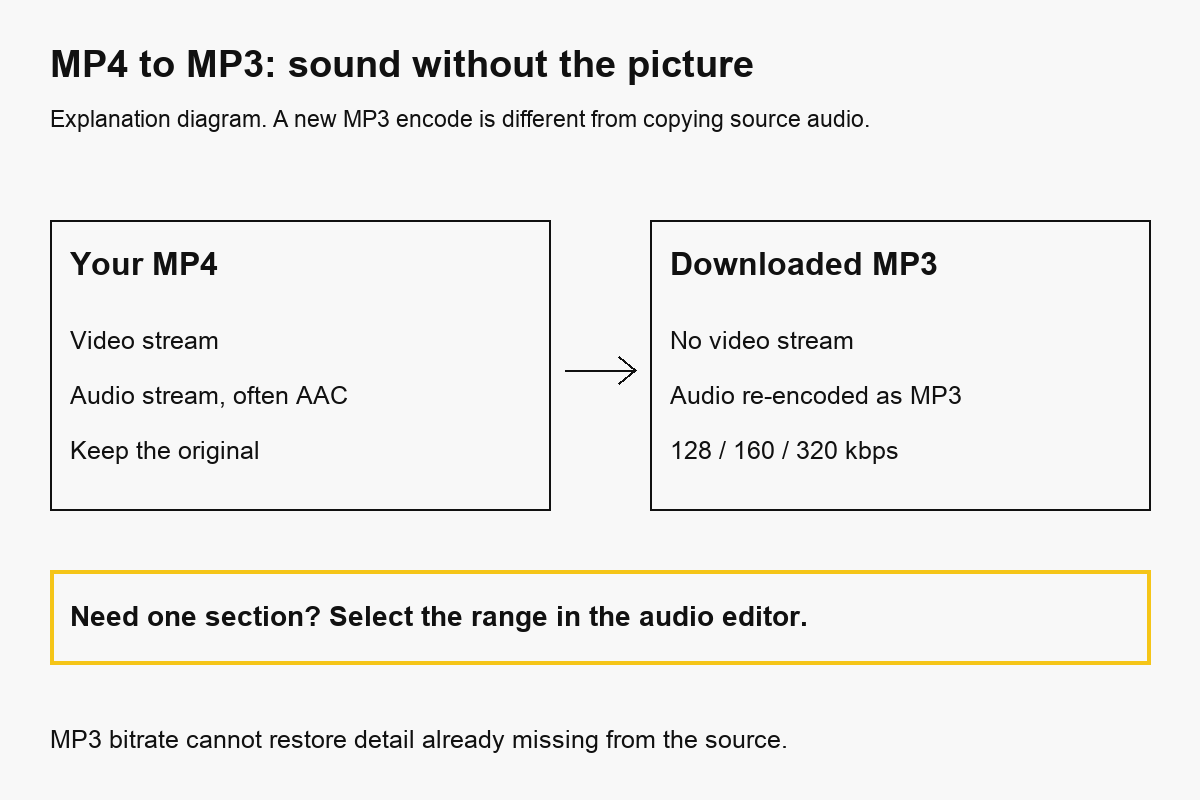
Changing recording.mp4 to recording.mp3 in a filename does not perform this conversion. The underlying bytes still describe the original media. Use a converter or a command that writes a valid MP3 stream.
| What you need | Choose | What it produces |
|---|---|---|
| The entire soundtrack as MP3 | Video to MP3 | Audio-only MP3 at the selected bitrate |
| One continuous section as audio | Audio cutter | Selected range as MP3, WAV or another offered audio format |
| The original AAC sound without another encode | Local compatible stream-copy command | AAC in M4A, not MP3 |
| A smaller video with its picture | Video compressor | A video file with a size budget |
| A video without embedded sound | Mute video | A video with its audio removed |
Choose according to what the destination accepts. A transcription service that accepts M4A may not need MP3 at all. If the destination requires MP3, re-encoding an AAC source is part of meeting that requirement.
How to convert MP4 to MP3 online
1. Select the original MP4
Open video to MP3 and choose your file. Check the filename, available duration and local preview so you do not convert the wrong recording. Use material you own or have permission to process.
The page operates in your browser, but export runs in the cloud: your source file is uploaded to FreeConvert. A local preview does not mean the conversion stays on your device. Use an approved offline workflow for confidential meetings, unreleased recordings or files that cannot leave your computer.
The preview depends on the browser’s decoder. A file extension is not a guarantee that every codec inside it will preview or convert. If the source plays in a trusted local player but not in the page, inspect its streams before deciding it has no sound.
2. Choose 128, 160 or 320 kbps
The default is 160 kbps. The page offers three constant-bitrate presets and no sample-rate, channel or audio-language selector.
Start with a bitrate that meets your size and playback needs, then listen to the download. A higher number gives the encoder a larger data budget, but cannot restore information missing from the original.
| Preset | A practical starting point | Approximate audio data per minute |
|---|---|---|
| 128 kbps | Smaller speech or long recordings; check clarity | 0.96 MB |
| 160 kbps | The page default for a balance of size and data rate | 1.20 MB |
| 320 kbps | More data for complex sound, if size permits | 2.40 MB |
These are starting points, not guarantees of audible transparency. A poor microphone, clipping or an already heavily compressed source may matter more than the MP3 bitrate. For further editing, consider WAV from the original rather than repeated MP3 exports.
3. Convert the full recording
Press Convert to MP3 and wait for the result. This page has no Start or End controls: it requests the whole soundtrack. Moving the video preview’s playhead does not change the exported interval.
If you need seconds 2–8 of a ten-second clip, upload the original MP4 to the audio editor and set that six-second range there. Exporting the whole MP3 and then cutting it with another lossy encode adds a processing step you can often avoid.
Where browser detection confirms there is no audio stream, the page disables conversion and shows an explanation. Detection is not a complete media-analysis tool, especially when the browser cannot decode the source. A failed decode or an incomplete upload still needs diagnosis.
4. Download and check the sound
Save the result promptly. The product’s download links last about four hours. That expiry describes link availability; it does not establish complete deletion from the processing provider.
Play the beginning, a representative middle section and the ending. Check that the file contains the intended voice or soundtrack, has the expected duration and opens in the destination app. A successful job status confirms an export completed, not that every detail of the source was preserved.
Guest use is limited to three completed jobs per 24 hours and 250 MB per input. Signed-in accounts use monthly credits and their plan’s file-size limit. The audio workflow bills by duration at the base resolution tier; a larger bitrate does not change it into a video-resolution job.
What our three MP3 exports actually contained
We generated a ten-second, 640 × 360 H.264 MP4 containing stereo AAC at 48,000 Hz. Its picture was a moving test pattern and its sound a synthetic 440 Hz tone. The original file was 1,701,547 bytes.
On October 14, 2026, we submitted the same source through the actual CompressVid job builder at all three offered MP3 rates. We downloaded and inspected every output with ffprobe.
| Requested bitrate | Reported audio bitrate | Duration | File size | Streams |
|---|---|---|---|---|
| 128 kbps | 128,000 bits/s | 10.000 s | 161,043 bytes | 1 audio, 0 video |
| 160 kbps | 160,000 bits/s | 10.000 s | 201,267 bytes | 1 audio, 0 video |
| 320 kbps | 320,000 bits/s | 10.000 s | 402,387 bytes | 1 audio, 0 video |
All three retained a 48,000 Hz sample rate and two audio channels in this test. That does not promise the same settings for every source. We did not test multiple audio languages, surround channels or a physical phone.
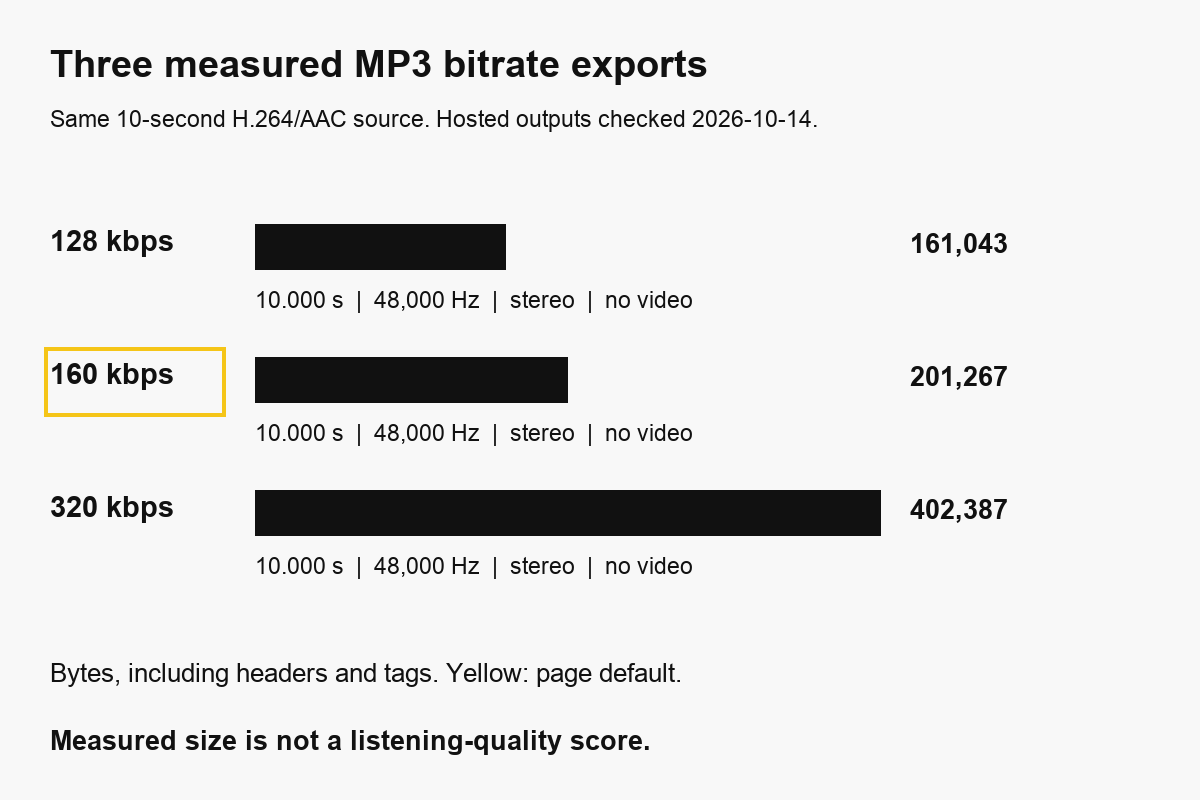
The public evidence record includes source-generation commands, requested settings, stream metadata and file hashes. It also documents local audio-copy and MOV conversion examples used in the companion MOV-to-MP4 guide.
The tone makes these measurements reproducible, but it is not representative of music complexity or speech intelligibility. We did not conduct a listening test, so the table does not rank sound quality.
Estimate MP3 size before a long export
For constant-bitrate audio, an approximate data budget is:
MB ≈ bitrate in kbps × duration in seconds ÷ 8,000
This uses decimal MB, where one MB is 1,000,000 bytes. Headers, tags, frame boundaries and encoder handling can change the final size. Some apps label binary MiB as “MB,” so compare bytes when a strict upload budget matters.
| Duration | 128 kbps | 160 kbps | 320 kbps |
|---|---|---|---|
| 10 seconds | 0.16 MB | 0.20 MB | 0.40 MB |
| 5 minutes | 4.8 MB | 6.0 MB | 12.0 MB |
| 30 minutes | 28.8 MB | 36.0 MB | 72.0 MB |
| 1 hour | 57.6 MB | 72.0 MB | 144.0 MB |
These are calculated audio-data estimates, not additional measured exports. At the same duration, 320 kbps uses 2.5 times the encoded data of 128 kbps. It does not triple it.
Do not use the video’s original size as the audio-size estimate. An MP4 combines picture, sound and container data; its picture can dominate the total. Conversely, a tiny low-bitrate video may produce a larger audio download if you request a high MP3 rate.
Convert locally with FFmpeg
With FFmpeg installed, this command selects the first audio stream and writes a 160 kbps MP3:
ffmpeg -i input.mp4 -map 0:a:0 -vn \
  -c:a libmp3lame -b:a 160k output.mp3
-map 0:a:0 selects the first input’s first audio stream. -vn excludes video, and libmp3lame performs the MP3 encode. If there is no audio stream, the explicit map fails rather than inventing sound.
We ran this recipe with FFmpeg 8.1.2 on the synthetic source. The local output was 201,268 bytes, with MP3 audio at 160,000 bits/s. ffprobe reported 10.005333 seconds, slightly different from the hosted file’s ten-second duration. Compressed frames, delay and duration reporting need not match exactly across workflows.
For a six-second section beginning at second two:
ffmpeg -ss 2 -t 6 -i input.mp4 -map 0:a:0 -vn \
  -c:a libmp3lame -b:a 160k section.mp3
Here -t 6 is the duration, not an absolute end time. This range syntax follows FFmpeg’s documented seeking and duration options; the dated experiment in this guide measured the full-file recipe. Check the section’s entry and exit after export.
Copy AAC instead when MP3 is unnecessary
If the MP4 already contains AAC and your destination accepts M4A, you can copy that audio into a suitable container:
ffmpeg -i input.mp4 -map 0:a:0 -vn -c:a copy output.m4a
This command does not create MP3. It avoids decoding and re-encoding the selected AAC packets. It also does not restore losses from the original AAC encode or guarantee every metadata field is retained.
Our local AAC copy was 243,196 bytes and ten seconds long. Its audio payload SHA-256 matched the source’s selected audio payload. The larger size than the 160 kbps MP3 is expected here: the original AAC was approximately 192 kbps.
Stream copy requires an audio codec compatible with the chosen container and player. Do not assume -c:a copy into M4A works for every codec found in an MP4. Inspect first:
ffprobe -v error -show_streams -show_format -of json input.mp4
For multiple audio tracks, identify the intended stream before mapping it. The browser tool offers no track selector, so it is not a suitable promise of retaining every language or commentary track.
Common problems and next steps
The converted MP3 is silent
Play the original and inspect whether it has an audio stream. A muted playback device, a silent track and a video without audio are different problems. Increasing bitrate does not create missing sound.
I wanted a smaller video, not an audio file
Use the compression guide and export a video. MP3 deliberately removes the picture; it is unsuitable when you still need to show the clip.
I need a ringtone or a shorter edited clip
Use the original video in the audio editor for one selected interval, volume or fades. Its output is audio-only. For an iPhone ringtone, follow the ringtone guide, including the separate installation step.
Is 320 kbps lossless?
No. It is still an MP3 encode. Keep the original or use compatible stream copy when avoiding another lossy audio encoding step is your priority.
How we tested
We checked FFmpeg’s official stream selection, stream-copy and libmp3lame bitrate documentation on October 14, 2026. Three hosted jobs used the product’s real builder; two local recipes checked MP3 encoding and AAC payload copying. All uploaded material was generated for this experiment.
We did not test customer recordings, subjective sound quality, mobile hardware, multi-track selection or account billing. The size estimates are labeled calculations, and local results are kept separate from hosted measurements.