
How to Convert MOV to MP4 (Copy Streams or Re-encode)
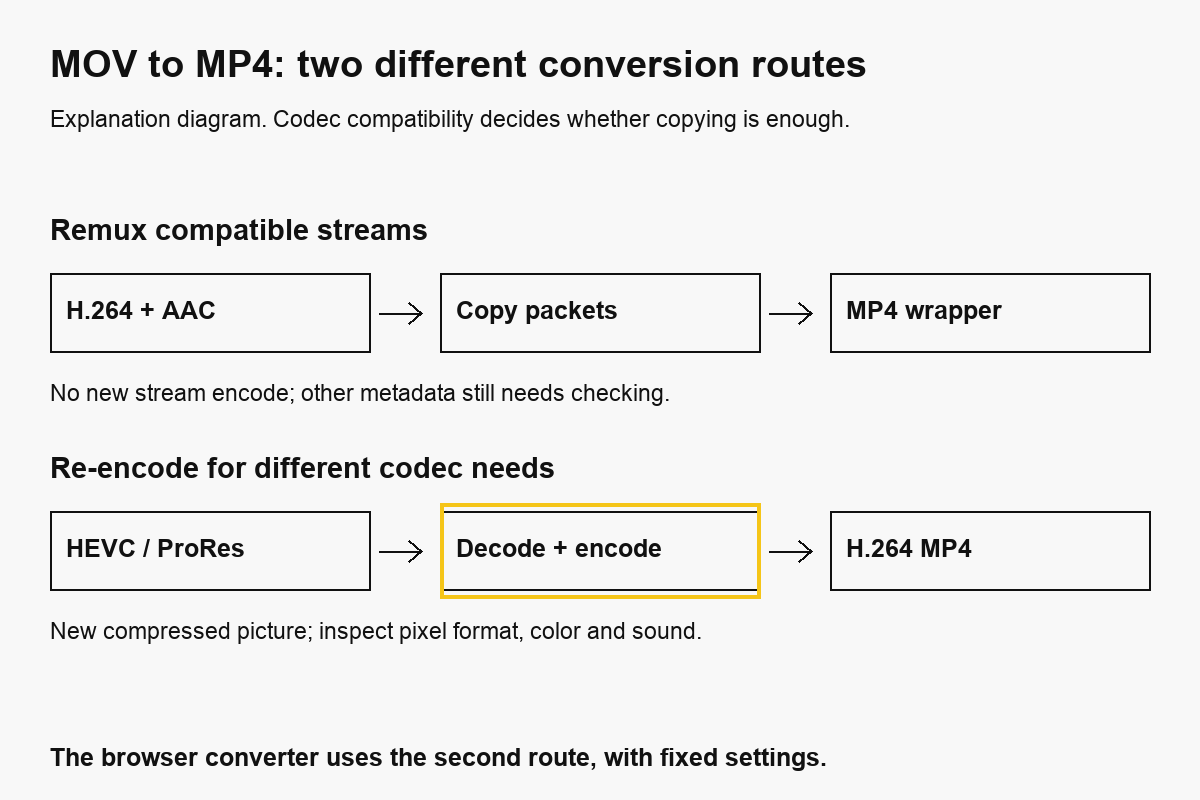
To convert MOV to MP4, use a converter that writes an MP4 file, or copy compatible streams into MP4 with FFmpeg. Our MOV-to-MP4 tool re-encodes the video as H.264. A local remux can avoid another encode when the source codecs already suit MP4 and your intended player.
We build CompressVid and have a commercial interest in recommending it. On October 14, 2026, we tested H.264/AAC, HEVC/AAC and ProRes/PCM MOV sources through our actual conversion builder. All were synthetic ten-second SDR clips. These tests do not establish HDR preservation, iPhone capture compatibility or playback on every device.
MOV and MP4 are containers, not quality settings
A MOV file describes how its media streams and metadata are packaged. It might contain H.264, HEVC, ProRes or another supported video codec, along with AAC, PCM or other audio. MP4 also packages media streams; its extension alone does not tell you the codecs, pixel format or playback requirements.
This is why two files ending in .mov can behave differently. A compressed H.264 phone-style sharing copy is a different input from a ten-bit ProRes editing file. Changing both to MP4 does not make their source properties identical.
Renaming clip.mov to clip.mp4 does not rewrite its container or change its codecs. A destination may still reject it, and the new name can make diagnosis harder.
| Operation | What changes | When it helps |
|---|---|---|
| Rename the extension | The filename only | Correcting an incorrectly named file, not converting media |
| Remux compatible streams | Container structure; selected compressed streams are copied | MOV already contains codecs supported by MP4 and the destination |
| Re-encode | Compressed video or audio data, plus the output container | The destination needs different encoding properties |
| Compress to a budget | Encoding settings chosen around a size target | The clip must fit an upload or attachment limit |
A remux avoids generational loss in the copied streams. It is not a guarantee of identical complete files, all metadata or universal playback. A re-encode can improve compatibility, but it changes compressed media and should be treated as a sharing copy.
How to convert MOV to MP4 online
1. Keep the original and select your MOV
Open MOV to MP4 and choose a local file you own or have permission to process. Keep the original under a separate name, especially for editing, HDR, transparency or camera metadata.
The page shows a local preview when the browser can decode the input. Check the filename, duration and available resolution readout. If a ProRes or HEVC file does not preview, that alone does not prove the source is corrupt: browser playback and the cloud converter have different capabilities.
Export uploads the full source to FreeConvert. Use an approved local workflow when the recording must stay on your device. The file-size limit applies to the source, so a large editing master may exceed the guest upload limit even when the intended output would be small.
2. Start the fixed H.264 conversion
Press Convert to MP4. The current page has no remux, bitrate, pixel-format or target-size controls. Its builder requests H.264 with CRF 21 and a veryfast encoding preset.
The tool re-encodes an H.264 source too; it does not automatically copy the original video because the codec name already matches. CRF is a quality-oriented setting, not a specified number of output bytes.
In our three sources containing audio, the provider produced AAC sound. A source with no audio does not acquire a soundtrack through conversion. Check your actual output instead of assuming every source stream or property survived.
3. Save and test the actual MP4
Download the file while its link is available, about four hours. Check picture, sound, orientation and timing in the app where you intend to use it. A successful cloud export does not establish destination playback.
Guest use allows three completed jobs per 24 hours, with up to 250 MB per input. Signed-in accounts use monthly credits and their plan’s file-size limit. Failed and expired jobs do not count toward the completed guest allowance.
If a website still rejects the MP4, inspect its video profile and pixel format, not just its extension. Also check the destination’s dimensions, frame-rate and file-size rules. A compatible container is one part of the requirement.
Three measured MOV-to-MP4 conversions
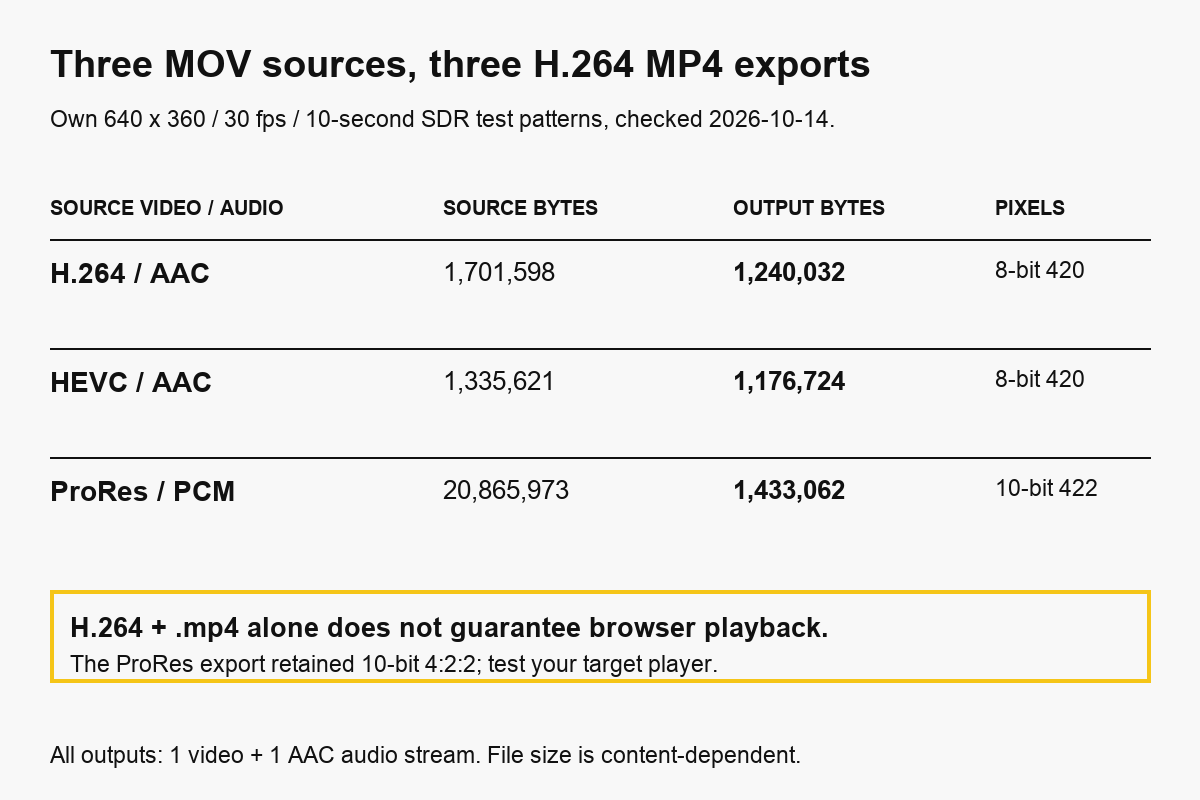
On October 14, 2026, we generated three ten-second, 640 × 360, 30 fps MOV files using FFmpeg 8.1.2. Each contained a moving test pattern and a stereo tone at 48,000 Hz. These were controlled SDR files, not camera recordings.
We converted each through the actual product job builder and inspected the downloaded files with ffprobe.
| Source video / audio | Source bytes | Output bytes | Output video pixel format |
|---|---|---|---|
| H.264 / AAC | 1,701,598 | 1,240,032 | 8-bit 4:2:0, yuv420p |
| HEVC / AAC | 1,335,621 | 1,176,724 | 8-bit 4:2:0, yuv420p |
| ProRes / PCM | 20,865,973 | 1,433,062 | 10-bit 4:2:2, yuv422p10le |
All three outputs contained one H.264 video stream and one AAC audio stream, with ten-second reported duration, 640 × 360 dimensions and 30 fps. The sound remained stereo at 48,000 Hz in these cases.
The public evidence record contains source commands, requested settings, stream metadata and hashes. You can see that the builder requests an encode rather than stream copy.
The ProRes result is an important limitation: H.264 in MP4 does not by itself guarantee ordinary browser playback. Its ten-bit 4:2:2 output requires decoder support that many common playback paths do not provide. Our current hosted page offers no control to force an eight-bit 4:2:0 sharing export.
For that situation, the local re-encode recipe below explicitly requests yuv420p. It is a sharing-oriented conversion, not a method for preserving ProRes’s chroma detail, bit depth or HDR properties.
All three test files became smaller. That is an observation about these patterns and settings, not a promise that every MOV will shrink. A more efficient source encode can become larger when converted to another codec or a higher data budget.
Convert MOV to MP4 locally without re-encoding
If inspection shows H.264 video and AAC audio already supported by your destination, try a remux:
ffmpeg -i input.mov -map 0:v:0 -map 0:a:0 \
  -c copy -movflags +faststart output.mp4
-c copy copies the selected compressed streams. It avoids decoding and encoding them again. +faststart moves the MP4 index toward the beginning for progressive playback; it does not convert an unsupported codec or lower the file’s bitrate.
The explicit maps choose the first video and first audio stream. They do not retain every language, subtitle, attachment or camera-specific track. For a source without audio, remove the audio map or use an optional map deliberately; do not confuse a missing track with silence.
We ran this recipe on our H.264/AAC MOV. The MP4 was 1,701,547 bytes, compared with 1,701,598 bytes for the MOV. That is a container-overhead difference, not meaningful video compression.
SHA-256 hashes of the selected video and audio payloads matched their respective source payloads. The full-file hash changed because the container was rewritten. This verifies stream copying for this example, not all metadata retention.
Before trying it on a different source, inspect:
ffprobe -v error -show_streams -show_format -of json input.mov
Look for codec_name, dimensions, pixel format, audio streams and relevant color or rotation information. Even a successful remux needs a playback test: copying HEVC does not make a player that lacks HEVC support decode it.
Re-encode when the destination needs different properties
For a sharing copy with H.264 video, eight-bit 4:2:0 pixels and AAC audio:
ffmpeg -i input.mov -map 0:v:0 -map 0:a:0 \
  -c:v libx264 -crf 21 -preset veryfast -pix_fmt yuv420p \
  -c:a aac -b:a 128k -movflags +faststart output.mp4
This decodes and re-encodes both selected streams. It is not lossless. CRF 21 does not enforce a target size, and eight-bit 4:2:0 does not preserve a ten-bit 4:2:2 editing source.
We ran the recipe on the synthetic HEVC/AAC MOV with two encoding threads. The output was 1,154,881 bytes, with H.264 yuv420p video and stereo AAC audio. ffprobe reported 10.005 seconds, a small difference from the hosted output’s ten seconds.
The explicit pixel-format setting addresses one compatibility property. You still need to test the destination’s supported profile, dimensions, audio and other constraints. This command also does not implement HDR tone mapping; forcing an eight-bit pixel format is not a complete color-management workflow.
For HDR, Dolby Vision, alpha or an editing master, use a codec-aware editor and a documented export path suited to those properties. Check the result against the original in the intended display workflow. Our synthetic SDR experiment cannot establish preservation of features it did not contain.
What about QuickTime Player on a Mac?
Apple’s current QuickTime export documentation states that exported movies are QuickTime .mov files using H.264 or HEVC. It explicitly says QuickTime Player does not export movies as MP4 videos.
Choosing a “Greater Compatibility” H.264 export therefore does not establish that you have an MP4 container. Check the actual file rather than relying on older tutorials that label every H.264 export “MP4.”
QuickTime’s Audio Only option produces MPEG-4 audio with AAC. It does not produce an MP3 video conversion. If you only want sound, use the MP4-to-MP3 guide and decide whether MP3 or copied AAC is required.
We checked Apple’s documentation on October 14, 2026. We did not perform a new QuickTime GUI export or test every macOS version, so these steps describe the documented behavior rather than a new device experiment.
Fix the right problem before another export
| Problem after conversion | Check first | Useful next step |
|---|---|---|
| MP4 is still too large | Destination’s byte limit and actual output size | Use Compress MOV or a compressor with MP4 output |
| MP4 opens locally but not in a browser | Codec, profile and pixel format | Test a suitable sharing encode in the actual browser |
| Picture is sideways | Rotation metadata and displayed orientation | Use the rotate guide if a physical rotation is needed |
| Sound is absent or wrong | Original stream list and selected audio | Map the correct local audio stream or use an editor |
| Colors differ from the original | Source HDR, color tags and export workflow | Keep the master and use a color-aware editor |
| Only the soundtrack was needed | Desired output type | Use video to MP3 instead |
If format and file size both matter, a compressor that accepts MOV and exports MP4 can address both in one encode. Converting first and compressing again is an extra lossy generation you may be able to avoid.
If you need only a short interval, follow the trim guide. Cropping and resizing change the picture’s geometry; changing MOV to MP4 alone does not establish the correct social-feed layout.
Questions before choosing a workflow
Is converting MOV to MP4 lossless?
A compatible remux can copy the selected streams without another encode. This browser converter re-encodes video, so its output is not lossless. “MP4” alone says nothing about which route was used.
Will an MP4 always be smaller?
No. Output size depends on content and encoding settings. Our ProRes example became much smaller; the remux changed size by only 51 bytes.
Does this preserve 4K, HDR and every audio track?
The page does not request resizing, but verify dimensions after export. It does not promise HDR, color metadata or multi-track preservation. Our measured clips were small SDR files with one audio stream each.
Can I delete the original after downloading?
Keep it until you have checked the complete output and its intended use. For editing or special camera properties, retain the original as your master even after the sharing copy works.
How we tested
We checked official FFmpeg stream-copy and mapping documentation, MDN’s container/codec guidance and Apple’s QuickTime export documentation on October 14, 2026. Three hosted jobs used the real product builder. Local recipes measured a compatible remux and an explicit H.264 sharing encode.
We generated all inputs ourselves. We did not test physical phones, camera HDR modes, transparency, subjective visual quality, every player, every metadata field or account billing. The tables report measured files and distinguish copying from re-encoding.