
How to Rotate or Flip a Video (Fix Sideways Footage)
Rotate a sideways video by 90° or 270°; flip a video horizontally when text or logos read backward. These are different fixes. Open the rotate and flip video tool, choose the correction, and inspect the downloaded MP4 rather than relying only on the preview.
We build CompressVid and have a commercial interest in recommending it. We tested our actual export settings with self-generated footage on October 13, 2026. The iPhone steps below were checked against Apple’s documentation; they are not a new physical-device test.
Should you rotate or flip the video?
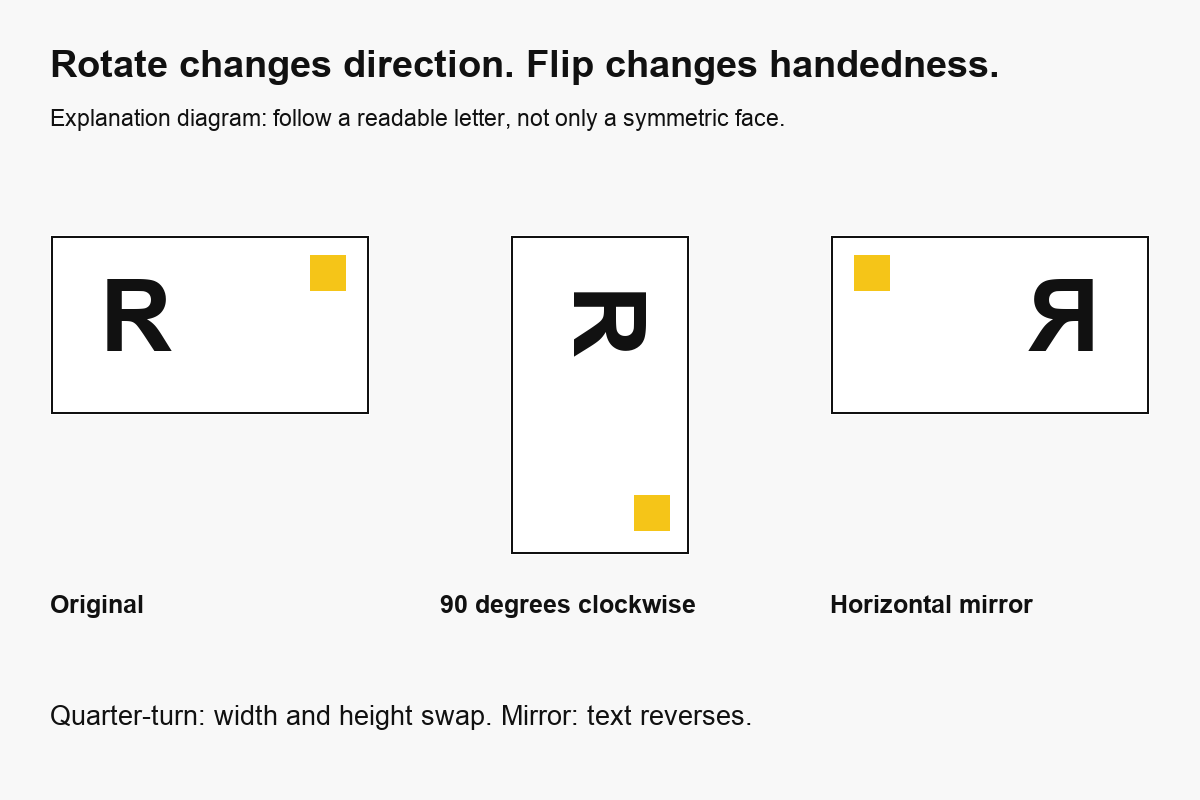
Rotation turns the entire picture around its center. A clockwise quarter-turn moves the top of the picture toward the right. A horizontal flip exchanges left and right, making readable text backward unless it was mirrored to begin with. A vertical flip exchanges top and bottom.
A face can look plausible in either mirrored orientation. Use something asymmetric to decide: a shirt logo, a street sign, a clock face or the location of a door. Do not flip footage just because your webcam preview looks more familiar that way. Some cameras mirror the preview while saving an unmirrored recording.
| What you see | First correction to try | What changes |
|---|---|---|
| Picture is sideways | 90° clockwise or 270° clockwise | Width and height swap |
| Picture is upside down | 180° | Both axes turn together |
| Text is backward | Horizontal flip | Left and right exchange |
| Top and bottom are reflected | Vertical flip | Top and bottom exchange |
| Sideways picture with backward text | Rotation plus a flip | Order matters; inspect both |
| Upright picture with empty borders | Resize with padding, or crop | An orientation change does not remove borders |
A 180° turn and a horizontal flip are not interchangeable. The former turns a person upside down as well as changing their position. The latter leaves them standing upright but reverses their handedness. If the problem is framing rather than direction, use the crop guide instead.
How to rotate or flip a video online
1. Load the original and find a visual reference
Choose the clip in the orientation tool. Accepted extensions include MP4, MOV, WebM, MKV and AVI, but processing also depends on the codecs and whether the file is valid. Your browser may not preview every format that a cloud decoder can process.
Keep the original separately. Check an identifiable object near the beginning and another near the end. A camera can change direction during a recording; rotating the whole file applies one correction throughout. A recording that changes halfway through may need to be split and edited in separate sections.
The preview uses a local browser object URL. Exporting uploads the file to FreeConvert for processing. If the recording must stay on your device, choose an approved offline editor or the local method below.
2. Choose a turn, a mirror, or both
The rotation choices are None, 90°, 180° and 270°, expressed clockwise. Choose 270° for a quarter-turn counterclockwise. The flip choices are No flip, Horizontal and Vertical. Select the actual correction rather than treating the number on the button as an accumulated sequence of turns.
Combined exports apply rotation first, then the mirror in the output’s coordinates. This distinction matters at 90° and 270°: horizontal in the upright output is not the same direction as horizontal in the original sideways frame. The live preview now follows that order.
Our combined-output test caught an earlier preview-order mismatch. CSS transformations operate from right to left, so listing a rotation before a flip had shown the opposite composition. We corrected the preview and checked the export against an independently transformed source frame. The controls still submit the same rotation and flip settings.
3. Export and inspect the downloaded copy
Press Rotate video, wait for completion, and download the MP4. No watermark is added. The tool re-encodes the picture to H.264 at CRF 21 with the veryfast preset. A correct orientation does not mean the encoded video is unchanged or lossless.
For a 90° or 270° turn, expect a 1920×1080 source without unusual rotation tags to become 1080×1920. That swaps orientation while preserving the whole picture. It does not crop a landscape scene into a portrait composition: all the people and background simply turn together.
Open the saved file in a separate player. Check readable text, the position of your visual reference, the start and end, and the audio. Download promptly because the product link is temporary, about four hours. Link expiry is not proof of complete provider deletion; our privacy policy explains the processing and storage limits.
If the corrected moment will become an image loop, continue with how to make a GIF from a video after checking orientation.
What we measured in three actual exports
We sent a ten-second synthetic H.264/AAC clip through CompressVid’s actual FreeConvert job builders on October 13, 2026. The source was 1920×1080 at 30 fps and 10,645,710 bytes. It had colored bands, moving details and one AAC audio track.
| Export setting | Measured coded dimensions | Duration | Audio | File size |
|---|---|---|---|---|
| 90° clockwise | 1080 × 1920 | 10.000 s | 1 AAC stream | 7,089,486 bytes |
| Horizontal flip, no turn | 1920 × 1080 | 10.000 s | 1 AAC stream | 7,596,798 bytes |
| 90° clockwise, then horizontal flip | 1080 × 1920 | 10.000 s | 1 AAC stream | 7,279,665 bytes |
All three retained 30 fps and square pixels in this sample. We decoded frames at two seconds and compared their spatial arrangement with exact rotations or reflections of the decoded source. The combined output matched rotation followed by horizontal reflection; the opposite order produced a different picture.
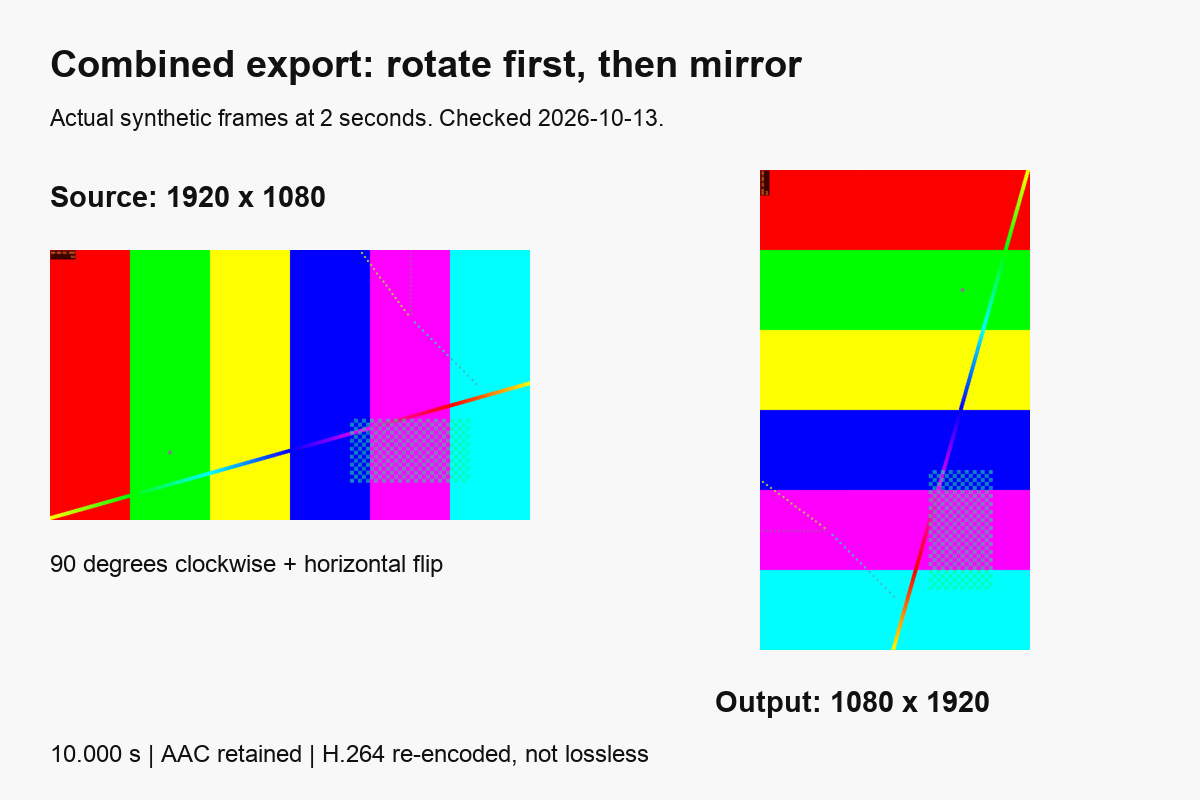
The public measurement record includes settings, dimensions, hashes and the geometry-check method. The input-generation recipe is linked there. Hashes identify individual measured files; independent encodes need not produce identical files.
These file sizes are observations from one synthetic pattern, not predictions for phone recordings. Re-encoding changes compression, and a different orientation can change how the encoder represents detail. This experiment does not establish a percentage reduction, an image-quality score, or the fastest tool.
Does rotating a video reduce quality?
The geometric operation can be exact; the export pipeline can still lose information. Turning a rectangular pixel grid by 90° or reflecting it does not require interpolating a new position between pixels. An arbitrary tilt, such as 7°, usually does require resampling and can introduce softened edges or empty corners.
CompressVid’s orientation export decodes and re-encodes the video. H.264 CRF 21 is a quality setting, not a promise that every pixel will match the source. Fine text, gradients and repeated generations of compression can show changes. Retaining dimensions, duration and frame rate does not prove losslessness.
A metadata-only correction can leave the encoded picture untouched, but it depends on the player understanding the display information. It can be appropriate when all recipients use compatible players. A rendered correction is useful when the destination misinterprets orientation, but it trades that independence from rotation tags for re-encoding.
Keep your camera original and make one final export where possible. If the corrected file is still too large, compress the video after deciding on framing and orientation. Repeatedly rotating, downloading and recompressing intermediate files adds unnecessary generations.
How to rotate or flip a video on iPhone
Apple documents both operations in Photos. Its current crop, rotate and flip guide, checked October 13, 2026, describes this workflow:
- Open Photos and select the video.
- Open the editing controls, then the Crop controls.
- Tap the rotation icon for a 90° turn, repeating as needed.
- Tap the flip icon if you need a horizontal reflection.
- Tap Done to save the edit.
The icons and their location can vary with iOS. Apple’s guide describes a horizontal flip, not a separate vertical-flip button. To undo a saved edit, open the edit controls and use Revert. Keep another copy when you need an untouched original outside your library.
When iCloud Photos is enabled, Apple says edits are saved across your devices. That matters if your goal is to work entirely outside cloud services. Also inspect the file you actually share: a correct Photos preview alone does not test the receiving app’s handling of orientation.
This documentation check does not establish that a particular iPhone model, export option or recipient will preserve every codec or metadata field. For critical footage, make a short test copy before processing the full recording.
Rotate or flip locally with FFmpeg
FFmpeg offers explicit filters for local processing. For an ordinary input whose displayed orientation you have already checked, this command turns the picture 90° clockwise:
ffmpeg -i input.mp4 -map 0:v:0 -map 0:a? \
  -vf "transpose=clock" -c:v libx264 -crf 21 \
  -preset veryfast -c:a aac rotated.mp4
For a horizontal mirror without a turn, replace the filter with hflip. For a counterclockwise turn, use transpose=cclock. For an upside-down picture, use hflip,vflip. The FFmpeg filter documentation specifies these directions.
To rotate first and then mirror horizontally:
ffmpeg -i input.mp4 -map 0:v:0 -map 0:a? \
  -vf "transpose=clock,hflip" -c:v libx264 -crf 21 \
  -preset veryfast -c:a aac corrected.mp4
Filters run in their written order here. The command maps the first video stream and available audio, then encodes H.264 and AAC. It is not a stream-copy method, and it does not preserve every subtitle, attachment or metadata field.
FFmpeg normally autorotates input according to display metadata. An additional filter can therefore overcorrect a clip that already displays upright. Inspect the input before choosing a filter, especially with phone MOV files. Our local recipe test used a synthetic source without a rotation tag.
Check the finished file with:
ffprobe -v error -show_streams -show_format -of json corrected.mp4
Confirm dimensions and duration, then visually check the orientation. Width and height alone cannot tell you whether text is mirrored.
How we tested, and what we did not
We checked Apple’s guide and FFmpeg’s official filter and command documentation on October 13, 2026. We ran three hosted conversions through the actual job builders and a local combined-filter command with FFmpeg 8.1.2 on macOS. The figures distinguish an explanation diagram from decoded output frames.
Geometry checks used the synthetic source’s asymmetric details. They verify which transformation occurred, not photographic quality, HDR preservation, lip synchronization or performance across devices. The hosted API measurements also do not independently verify account billing. We did not run a new physical iPhone or Android test.
Questions before you export
Will rotating make a landscape video suitable for a vertical feed?
Only when the landscape picture was actually sideways. Rotating an already upright landscape scene turns its subjects sideways. For an upright portrait canvas, resize with padding or crop.
Why does a video look upright in one player and sideways in another?
Different applications can interpret orientation metadata differently. A rendered correction removes dependence on that tag for the picture’s direction, but codec support and other playback requirements still apply.
Can I fix backward subtitles by flipping the whole video?
A flip also reverses everything else. If only an added subtitle layer is backward, correct that layer in the editing project. Subtitles already burned into the picture cannot be treated as a separate layer by this tool.
Does rotating remove sound?
The measured exports retained one AAC track. Rotation is not an audio-removal control. Use the mute tutorial when you need a copy with no audio streams.