
How to Resize a Video (Pixels, Ratios and Borders)
To resize a video, choose the output pixel dimensions, decide whether to keep the whole frame or crop it, then inspect the exported file. In the video resizer, use 720p for a 1280×720 canvas or choose custom dimensions. A square or vertical canvas can need borders when your source is wide; a preset does not create new composition.
We operate CompressVid and have a commercial interest in recommending it. The examples below use self-generated footage and actual cloud API exports, measured on October 13, 2026.
Resize, crop and compress solve different problems
Resizing changes the dimensions of the picture or the canvas that contains it. Cropping chooses which region of the original survives. Compression changes how many bits are used to represent the media. A workflow can do more than one, but these are separate decisions.
| Your problem | First decision | Useful tool |
|---|---|---|
| A 1920×1080 clip needs to become 1280×720 | Scale the whole frame | Resize video |
| A wide clip needs a square canvas with everything visible | Scale to fit, then add borders | Resize video |
| A wide clip needs to fill a square without borders | Choose which side pixels to discard | Crop video |
| The dimensions are right but the file exceeds an MB cap | Choose a size budget and inspect the result | Video compressor |
| The clip is unnecessarily long | Choose the kept time range | Trim video |
For a straight 16:9 reduction, 1920×1080 to 1280×720 changes both sides by the same factor. Objects retain their shape. Setting 1080×1080 without a fitting policy is different: directly scaling each axis by a different factor makes circles into ovals and alters faces.
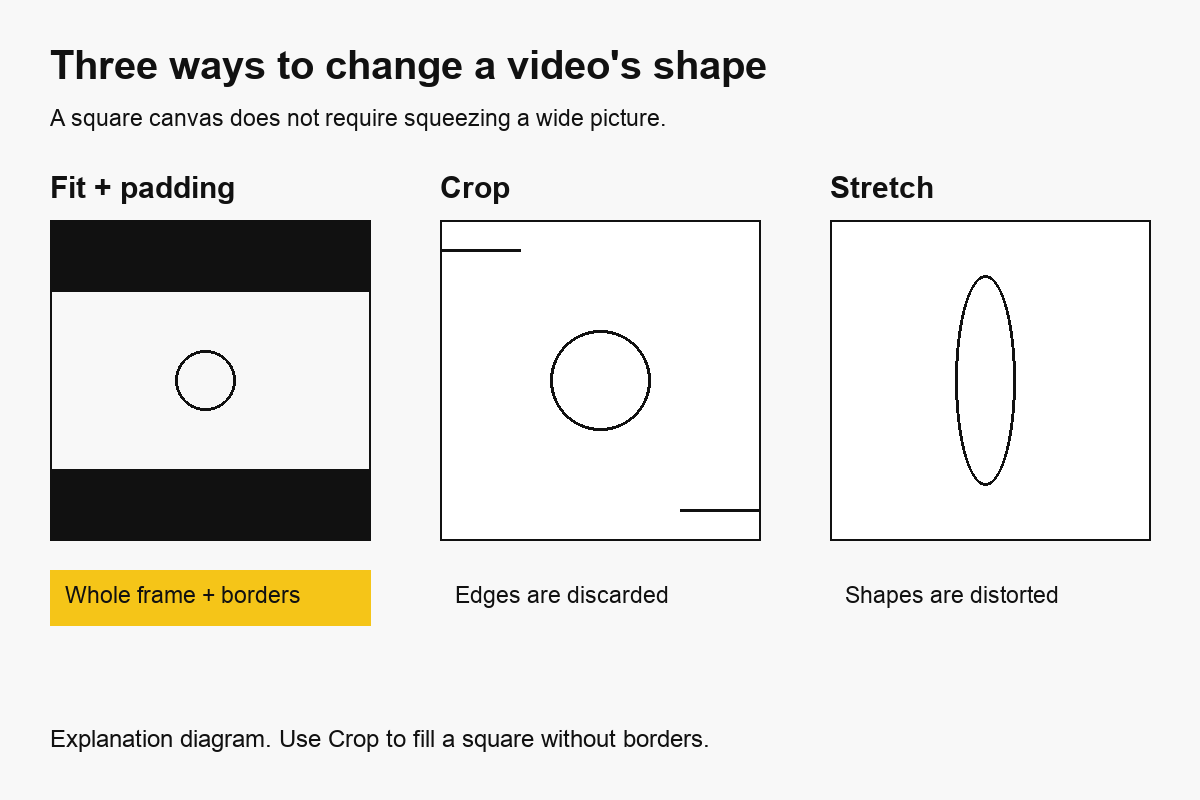
A player showing black bars does not always mean the file itself contains those bars. The player may add them around a differently shaped video. Our square example below has a square coded canvas and borders inside the exported picture.
How to resize a video online
1. Check the source dimensions
Upload the original to the resizer. Check the filename, source dimensions and orientation shown in the preview. A landscape clip, a portrait recording and an anamorphic file require different framing decisions.
Common containers include MP4, MOV, WebM, MKV and AVI. Decoder support depends on their contents, so do not infer compatibility from an extension alone. If the preview or export fails, check whether the original is damaged or uses an unusual codec.
Processing uploads the video to FreeConvert. The browser is the interface; this is not an offline encoder. For footage that must stay on your device, use a local editor or the FFmpeg examples later in this guide.
2. Choose the output canvas
The tool offers 1080p, 720p, 480p, square, 4:5 and 9:16 presets. These are output choices, not promises that every social platform requires those exact dimensions.
| Preset | Requested canvas | Useful starting point |
|---|---|---|
| 1080p | 1920 × 1080 | Landscape delivery from a sufficiently detailed source |
| 720p | 1280 × 720 | Smaller landscape previews or screen recordings |
| 480p | 854 × 480 | Low-resolution delivery; inspect text carefully |
| 1:1 1080 | 1080 × 1080 | Square canvas; a wide source needs padding or a crop |
| 4:5 IG | 1080 × 1350 | Portrait canvas; check the destination’s current guidance |
| 9:16 | 1080 × 1920 | Tall canvas; choose framing before exporting |
When you type a custom width, Keep aspect ratio links the other input to the source ratio. The checkbox helps edit the dimensions; it does not choose which part of the picture to crop. Selecting a named preset sets both canvas dimensions.
If you only need a new width, leave the height empty. The encoder calculates it from the source aspect ratio. Video encoders may round a dimension or record a small pixel-aspect adjustment; inspect both the coded dimensions and the displayed shape.
3. Review the fit, then export
With both dimensions specified, this workflow fits the full picture inside the requested canvas and pads the remaining space. For a wide source in a square canvas, that usually means horizontal bands above and below. It avoids deliberately stretching the source to fill the square.
If the subject must fill a vertical feed, padding may look too small. Crop the frame around the subject first, then resize the retained region if necessary. Watch for hands, captions and people moving across the crop boundary. A static crop box cannot follow a subject around the scene.
Press Resize video, download the MP4, and inspect the actual result. The tool uses H.264 CRF 21 and the veryfast preset, so even a resize to the source’s existing dimensions is a new lossy encode. Save the download promptly; the product’s temporary link is valid for about four hours.
Three measured exports from the same source
On October 13, 2026, we used a synthetic 10-second, 1920×1080, 30 fps H.264 video with one AAC audio stream. The source was 10,645,710 bytes. We submitted actual resize job settings through FreeConvert’s API and measured each downloaded file with ffprobe.
| Requested settings | Measured coded dimensions | Duration | Audio streams | Output bytes |
|---|---|---|---|---|
| Width 1280, height 720; same source ratio | 1280 × 720 | 10.000 s | 1, AAC | 2,212,286 |
| Width 1080, height 1080; pad to canvas | 1080 × 1080 | 10.000 s | 1, AAC | 1,515,766 |
| Width 854; height omitted | 854 × 480 | 10.000 s | 1, AAC | 897,318 |
The square export retained the full horizontal pattern. A decoded frame at two seconds had picture content in rows 236–843, with borders above and below. That is a measured padded canvas, not a stretched square.
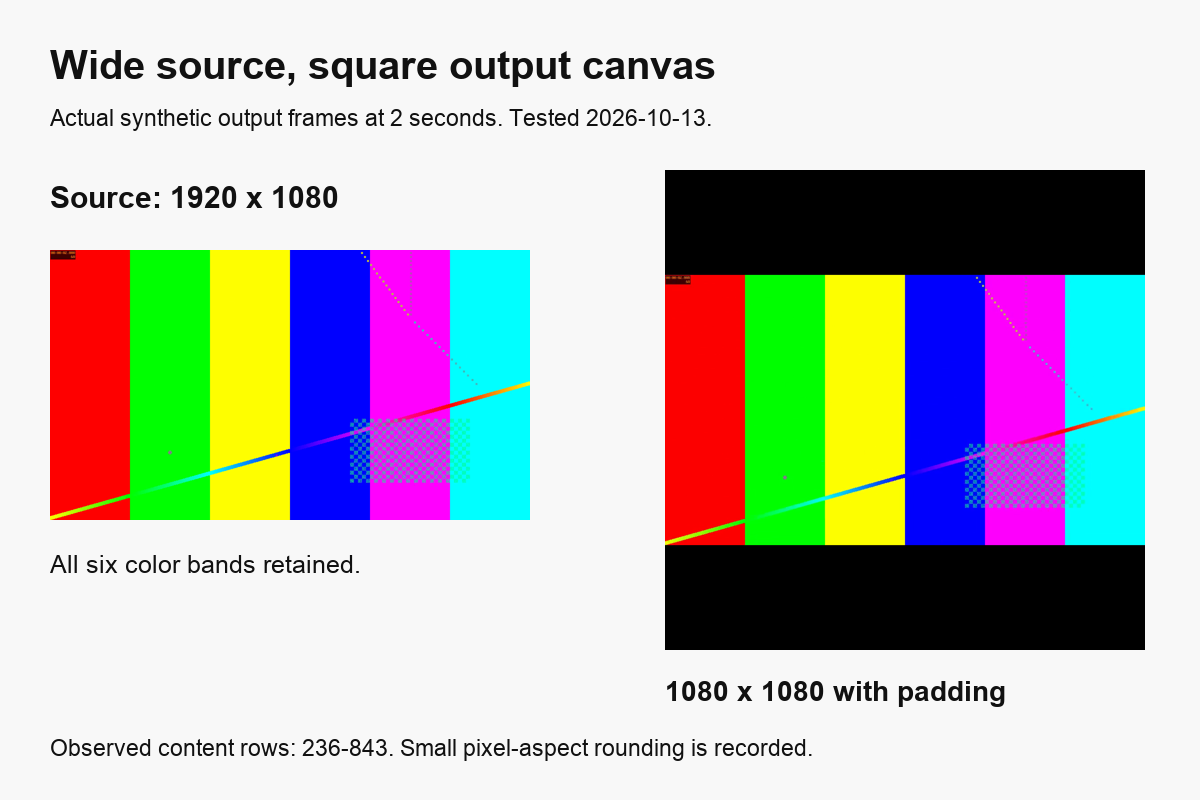
The provider recorded sample aspect ratio 1216:1215 for the square export, and 1280:1281 for the width-only export. Coded width and height therefore do not tell the entire display story. These small rounding adjustments are included in the public measurement record, along with commands, encoding settings and file hashes.
The size changes are observations from this sample, not fixed savings percentages. Re-encoding, scaling and padding all affect the result. We did not measure perceptual quality or claim that one output looks better because it has fewer bytes.
Calculate a new size without stretching
For a square-pixel source, preserve its ratio when calculating a single-side resize:
new height = new width × source height ÷ source width
1280 × 1080 ÷ 1920 = 720
For a containing canvas, the scale factor is the smaller of the width and height factors:
scale = min(canvas width ÷ source width, canvas height ÷ source height)
With 1920×1080 inside 1080×1080, the ideal scaled content is 1080×607.5 before pixel alignment. Encoders need whole pixels and often even dimensions. The 608-row content observed in our sample explains why a small aspect adjustment can appear in metadata.
Padding fills the space left over. Cropping fills the canvas by discarding edges instead. Stretching fills it by changing the source’s proportions. Decide which tradeoff you want before using an export preset.
Resize locally with FFmpeg
For a square-pixel input, this command sets width to 1280 and lets FFmpeg choose an even height:
ffmpeg -i input.mp4 -vf "scale=1280:-2" \
  -c:v libx264 -crf 21 -preset veryfast -c:a aac output-720p.mp4
The -2 height value preserves the input ratio while choosing a dimension divisible by two. For a square canvas that retains the whole frame, use scaling plus padding:
ffmpeg -i input.mp4 \
  -vf "scale=1080:1080:force_original_aspect_ratio=decrease:force_divisible_by=2,pad=1080:1080:(ow-iw)/2:(oh-ih)/2,setsar=1" \
  -c:v libx264 -crf 21 -preset veryfast -c:a aac output-square.mp4
These are local FFmpeg recipes, not the hidden command line of the cloud provider. The final setsar=1 makes the output pixels square; very small rounding differences may remain in the fitted content. Anamorphic inputs, rotation metadata and multiple tracks need additional attention. See the official scale documentation and pad documentation.
Why resizing does not guarantee a smaller file
Resolution and file size are related through encoding settings, not a universal percentage. A lower-resolution export using a higher bitrate can be larger than a tightly compressed source. Audio and container overhead remain even when you reduce the picture.
If an upload form says “20 MB,” it is specifying bytes, not pixels. Pick useful dimensions first, then use a file-size budget and verify the download. The tool’s MB input uses 1,048,576 bytes per unit, while the decimal calculations in that guide use 1,000,000.
Upscaling is also different from recovering detail. A 640×360 recording enlarged to 1920×1080 contains more output pixels, but ordinary scaling cannot reconstruct the original detail that was never recorded. Text may remain blurry and compression artifacts may become easier to see.
Check the finished dimensions and playback
Run this on a local export:
ffprobe -v error -select_streams v:0 \
  -show_entries stream=width,height,sample_aspect_ratio,display_aspect_ratio \
  -of json output-square.mp4
Check the picture in a normal player too. Inspect a face or circular object for distortion, read small text, and check captions near the edges. Confirm that wanted audio still plays and that the file has the required duration.
For platform delivery, use the destination’s current documentation. YouTube’s official aspect-ratio guide explains that its player adapts to different ratios; its usual desktop 16:9 presentation does not mean all uploads must be 16:9. It also recommends avoiding black bars baked into the video because they interfere with that adaptation. For a YouTube upload, keeping the source ratio with a width-only resize may be preferable to forcing a padded canvas. A preset name is a convenience, not a complete platform compliance check.
FAQ
Can I resize without losing quality?
Scaling and lossy encoding can remove or alter detail. Keeping the source dimensions avoids downscaling but does not make a re-encode lossless. Work from the best original and inspect the output at its intended viewing size.
Can I resize a landscape video into portrait without borders?
You can crop to a portrait region, or deliberately stretch it. Cropping keeps natural shapes but discards side content. Padding keeps the whole frame with borders. Ordinary resizing cannot keep all the wide content, fill a tall frame and preserve every proportion simultaneously.
Does resizing remove the sound?
The measured resize exports retained one AAC audio stream. To produce a track-free copy instead, follow how to mute a video. Do not infer audio removal from a silent player.
Why is the height slightly different from my calculation?
The ideal result may contain a fractional pixel. Encoder alignment and pixel-aspect metadata can resolve that fraction. Check the measured coded dimensions and display ratio, especially for anamorphic sources.
How we tested and checked
- 2026-10-13: actual
buildResizeJobAPI exports from one synthetic source; localffprobe, decoded output frames, and a sampled-row check for square padding. An earlier scale-to-square control is explicitly labeled as a stretching control in the public record. - FFmpeg scale and pad filters and YouTube aspect-ratio guidance were checked on that date. Platform interfaces and preferences can change.
- The concept diagram is an illustration; the source/output figure uses actual decoded frames. No physical-device coverage, perceptual quality score or cross-service speed comparison is claimed.
For more framing detail, read how to crop a video. For unwanted time rather than unwanted pixels, read how to trim a video online.