
Extract Audio from Video (MP3, WAV or Keep AAC)
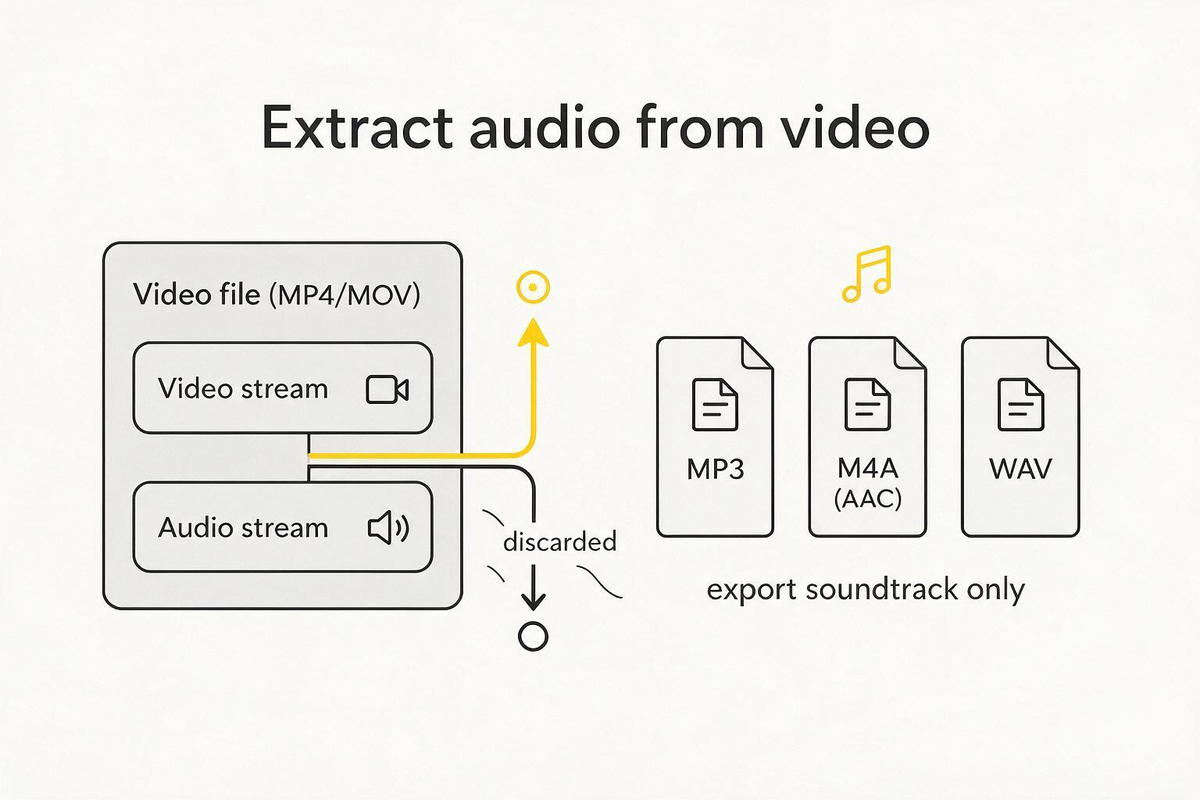
To extract audio from video, convert the file’s sound track to MP3, M4A or WAV and leave the picture behind. If you need the whole soundtrack as a common audio file, use our video-to-MP3 tool; if you need one section, or volume and fades, use the audio editor.
We build CompressVid and have a commercial interest in recommending it. On October 15, 2026, we generated a ten-second test clip and measured local FFmpeg exports of MP3, AAC-in-M4A and WAV. The numbers describe those outputs — not how any particular recording will sound.
What “extract audio” actually does
A video file is usually a container (MP4, MOV, MKV, WebM…) holding separate streams: one or more video tracks and one or more audio tracks. Extracting audio does not “find hidden sound in the picture.” It copies or re-encodes the audio stream(s) into an audio-only file.
That distinction matters when something goes wrong:
| Source | What extraction produces |
|---|---|
| MP4 with AAC stereo | MP3 / M4A / WAV of that AAC sound |
| MP4 with no audio stream | Nothing useful — there is no soundtrack to extract |
| MP4 with a silent audio track | A valid audio file that is silence |
| Screen recording with mic and system audio | Often both mixed or only one track, depending on the recorder |
Renaming talk.mp4 to talk.mp3 does not extract anything. The bytes still describe a video container.
Which format should you choose?
| Goal | Format | Why |
|---|---|---|
| Upload to a tool that wants MP3 | MP3 128–320 kbps | Universal; re-encodes the sound (lossy again) |
| Keep the original quality, play in Apple/Android apps | M4A (AAC copy when possible) | No extra lossy stage if you copy the AAC stream |
| Edit further in a DAW or NLE | WAV (PCM) | Uncompressed samples; large files |
| Make an iPhone ringtone | M4R via the ringtone flow | Separate container name and length limits |
If the destination accepts M4A or WAV, you often do not need MP3 at all. MP3 is a compatibility format, not an automatic upgrade.
Measured sizes on a ten-second clip
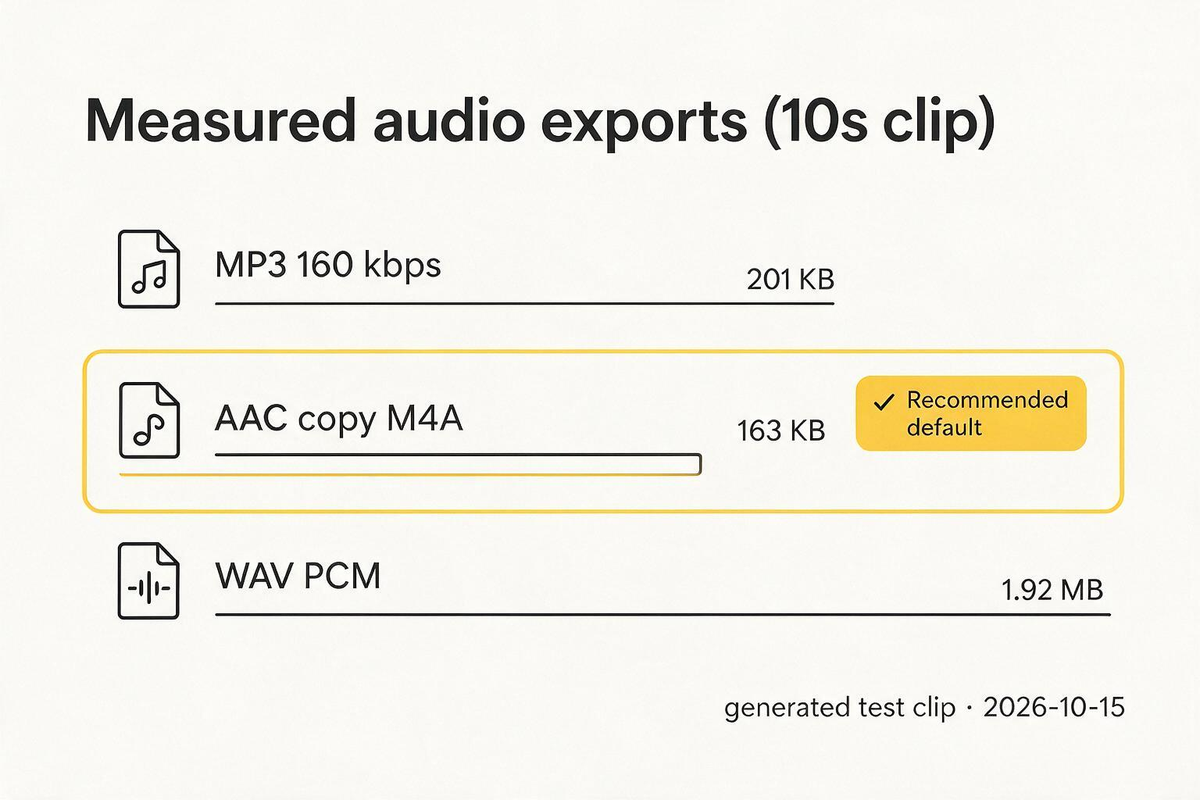
We used a generated 10 s, 640 × 360 clip with a 440 Hz stereo AAC tone at 48 kHz (source audio ≈ 128 kbps). Local FFmpeg exports:
| Export | Codec | Measured size | Duration |
|---|---|---|---|
| MP3 160 kbps | mp3 / 160000 bps | 201,268 bytes | 10.005 s |
| AAC copy in M4A | aac / 128083 bps | 163,133 bytes | 10.000 s |
| WAV PCM 16-bit | pcm_s16le | 1,921,102 bytes | 10.005 s |
WAV is about 9.5× the MP3 160 file for the same ten seconds. That is expected: PCM stores every sample; MP3 throws data away under a bitrate budget. AAC copy stays closest to the embedded soundtrack and is smaller than the MP3 in this test because it did not re-encode.
Full probe data: edit-and-extract-20261015.json.
Extract the whole soundtrack online
1. Upload the video
Open Video to MP3 and choose the file. The page previews in the browser and exports in the cloud (files are sent to our processing provider). Use an offline workflow for material that cannot leave the machine.
Guests can process a few files per day up to 250 MB; signed-in accounts use monthly credits and a higher size limit.
2. Pick a bitrate
The page offers 128, 160 (default) and 320 kbps constant-bitrate MP3. For speech, 128–160 is often enough. For music you care about, prefer 320 — or skip MP3 and copy AAC locally.
3. Convert and download
The tool takes the full recording. It does not offer start/end handles. Save the result within about four hours (that is how long the download link stays valid).
Extract only part of the sound
If you need 00:02–00:08 of a ten-minute lecture, do not export the whole MP3 and chop it in another lossy tool. Use the audio editor: set the range, optional volume and fades, then export MP3, WAV or M4A of that section only. The same page also accepts audio-only sources.
Local FFmpeg recipes
Commands we ran on October 15, 2026 (FFmpeg docs: stream selection, stream copy):
# MP3 at a chosen bitrate
ffmpeg -i source.mp4 -vn -c:a libmp3lame -b:a 160k extract-160.mp3

# AAC stream copy into M4A (no extra lossy encode)
ffmpeg -i source.mp4 -vn -c:a copy extract-aac.m4a

# Uncompressed WAV for editing
ffmpeg -i source.mp4 -vn -c:a pcm_s16le extract.wav

# One section only (keeps 2.00s–6.00s)
ffmpeg -ss 2 -to 6 -i source.mp4 -vn -c:a libmp3lame -b:a 160k part.mp3
-vn drops the video stream. -c:a copy only works when the output container accepts the source codec (AAC → M4A is fine; AAC → MP3 is not).
Common problems
The extracted file is silent
- Confirm the source has an audio stream (
ffprobe source.mp4— look forcodec_type: audio). - A silent source is not a converter bug. Screen recorders sometimes capture only the microphone and nothing plays through it.
- If the preview has sound but the export is empty, re-check you did not select a “mute” or zero-volume edit by accident (see the audio edit guide).
The file is much larger than the video’s audio
WAV will be. Compare against the bitrate table above. If you wanted a small shareable file, export MP3 128–160 or keep AAC in M4A.
I wanted a shorter video, not an audio file
That is trim or compress, not audio extraction. Audio tools on our product return audio-only files.
Can I extract two language tracks separately?
Only if the container really has multiple audio streams and your extractor can select a stream. Our hosted tool exports a single blended/default track. Local FFmpeg can map a specific stream (-map 0:a:1) when you know the stream index.
Is 320 kbps MP3 lossless?
No. MP3 is always lossy. It spends more bits per second than 128 or 160; it cannot restore detail already discarded by AAC or an earlier MP3 encode. For a lossless intermediate, use WAV from the earliest generation you still have.
Batch and batch-less workflows
One file, one export
The usual case: a meeting recording or camera clip → one MP3. Upload once, wait for the job, download. Guest quotas exist so a single person cannot hog the queue; if you hit the daily cap, sign in or wait for the next window.
Many clips
There is no folder upload in the hosted tool. For a series of lectures:
- Extract each file to MP3 160 (or AAC copy) locally with the FFmpeg loop.
- Name outputs with the lecture number before you upload them to a course platform.
- Keep the originals; do not overwrite the only master with a 128 kbps MP3.
A one-liner pattern (adjust the glob):
for f in *.mp4; do ffmpeg -i "$f" -vn -c:a libmp3lame -b:a 160k "${f%.mp4}.mp3"; done
Keeping sync if you still need the picture
If you extract audio, edit it, and want it back on the video, the audio length must match the picture you kept. Trimming only the audio creates a desync when you remux. Either:
- trim video and audio to the same interval first, then edit sound, or
- edit audio against a burned-in reference and re-align before export.
Our product’s audio editor returns audio-only files by design — remuxing edited audio onto video is a local or full-editor step.
Platform notes worth checking before you export
| Destination | What usually matters |
|---|---|
| Podcast host | MP3 or M4A, loudness norms, ID3 tags (our export does not write rich tags) |
| Transcription API | Often accepts M4A/WAV better than low-bitrate MP3 |
| iPhone ringtone | M4R, length limits — see the ringtone guide |
| Video editor timeline | WAV or high-bitrate AAC intermediates |
| Email attachment | Small MP3 128; check the mail system’s real cap |
Platform rules change. Verify the destination’s current help page before a large batch.
How we tested, and what we did not
We generated a synthetic 10 s test pattern with a 440 Hz tone, encoded it as H.264/AAC, and ran the three FFmpeg exports above. We recorded ffprobe streams and file sizes. We did not listen-test music or speech quality, did not cover every codec in every container, and did not claim any export restores lost detail.
Hosted tool limits (guest daily count, 250 MB, four-hour links) describe the product as of October 15, 2026; check the pricing page for current plan rules.