
How to Edit Videos Online (Trim, Crop, Rotate, Audio and Size)
Online video editing means changing length, frame, orientation, sound or file size in the browser without installing an editor. Start from the problem you have — a clip that is too long, framed wrong, sideways, noisy, or too big to send — and apply only that fix. Our video compressor, trim, crop, rotate, mute, resize and audio tools each do one job in that pipeline.
We build CompressVid and have a commercial interest in recommending it. On October 15, 2026, we measured local FFmpeg exports for the main edit operations on a generated ten-second clip. Those numbers describe our test file. We did not time browser UI latency or claim any tool is the fastest on the market.
What “editing online” can and cannot do
Browser tools are built for task-shaped edits, not a full timeline NLE:
| You need | Typical online fix | Not the right tool |
|---|---|---|
| Remove the boring start/end | Trim | Compress (keeps full length) |
| Cut out a black frame / wrong ratio | Crop | Resize (scales everything) |
| Phone video is sideways | Rotate / flip | Crop (does not turn the picture) |
| Remove background chatter or music | Mute | Volume-only audio edit (still has a track) |
| Fit a 1080p upload limit | Resize | Trim (time, not pixels) |
| Level, fade or cut sound | Audio editor | Mute (drops audio entirely) |
| Hit an email/Discord size cap | Compress with a target MB | Re-exporting at random quality |
If you need multi-track timelines, keyframes, color grading or nested sequences, use a desktop or full NLE. Online editors shine when the decision is simple and the deadline is “send this in five minutes.”
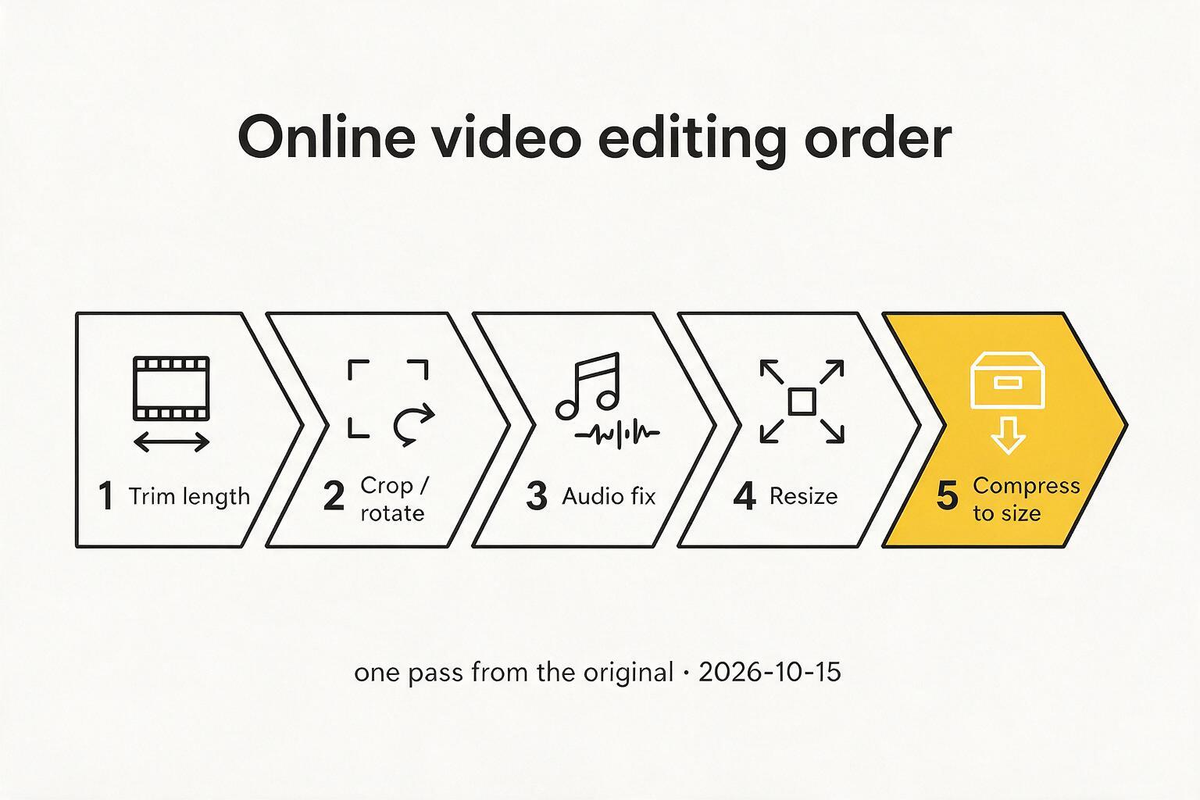
A reliable order of operations
Editing operations interact. Doing them in a sane order avoids double work:
- Trim to the section you actually want (less to process later).
- Crop / rotate so the frame and orientation are correct.
- Audio (mute, level, fades) or extract a separate soundtrack.
- Resize only if a platform demands specific pixels.
- Compress last, to a real size budget.
Going the other way often re-encodes a long clip you will throw away, or compresses a frame you will crop.
1. Trim — keep the useful range
Trim cuts time. Frame-accurate trim re-encodes; a stream-copy cut is faster but snaps to keyframes and can drift.
Measured on our 10 s source (H.264/AAC, 640 × 360): keeping 00:02–00:06 produced a 4.000 s file (454,773 bytes) with picture and sound still paired.
Online: open Trim video, drag the range, preview, export. Start/end fields accept timecode. See the trim guide for handle and preview behavior.
2. Crop — change what is in the frame
Crop cuts pixels (a rectangle of the picture). It does not scale the whole frame down.
Our test crop (320 × 320 window) produced 320 × 320 video at the full 10 s duration. Aspect ratio changed from 16:9 to 1:1.
| Need | Use |
|---|---|
| Remove a watermark strip or empty side | Crop |
| Fit 1:1 / 4:5 / 9:16 for a feed | Crop with a ratio preset |
| Make the whole picture smaller | Resize |
Online croppers usually show a draggable box and numeric width/height. Set the ratio the destination expects before you fine-tune the rectangle.
3. Rotate and flip — fix orientation
Rotate turns the picture 90°/180°/270° (clockwise in our tool: 90° CW, 180°, 90° CCW). Flip mirrors horizontally or vertically. They are different: rotate changes which side is “up”; flip does not.
Measured transpose=1 (90° clockwise) on 640 × 360 → 360 × 640 output. Dimensions swap on a 90° turn; 180° keeps W×H.
Phone clips that are sideways are usually rotation, not crop. If both orientation and framing are wrong, rotate first, then crop against the result.
Details and preview behavior: rotate or flip guide.
4. Mute, level, or extract audio
Three different jobs:
| Job | Output | Tool |
|---|---|---|
| Remove audio completely | Video, no audio stream | Mute |
| Keep audio, change volume/fades or cut a range | Audio file (or video with new audio locally) | Audio editor |
| Soundtrack as a separate file | MP3 / M4A / WAV | Video to MP3 · extract guide |
Measured mute with stream copy (-c copy -an) kept the H.264 picture bitstream and dropped the audio stream: 993,368 bytes, video-only. A full re-encode mute can change size more than the missing sound warrants — stream copy is enough when the picture is unchanged.
Volume-only edits do not remove the track. If a platform rejects “has audio,” mute. If the volume is the problem, use the audio editor and check that the export is not audio-only when you still need picture (our audio tool is audio-only; local FFmpeg can remux edited audio back onto the video).
5. Resize vs crop vs compress
These three words get mixed up in everyday speech:
- Resize — change pixel width/height of the whole picture (may letterbox or stretch unless the tool preserves aspect).
- Crop — discard part of the frame.
- Compress — keep more or fewer pixels but reduce bytes via bitrate/codec.
Measured scale to 320 × 180: 384,814 bytes, still 10 s, still has audio. The picture is smaller, so the file can be smaller or still large if the bitrate stays high.
When a site says “max 720p,” resize. When it says “max 20 MB,” compress to a target size.
6. Compress last — hit a real size budget
After the cut is final, use a target MB (for example 19 MB for Discord, 24 MB for Gmail). Target-size compression converts that number into a bitrate from the clip’s duration.
Practical order: trim → frame/audio fixes → one compress pass to the cap. Repeated lossy stages stack quality loss; if you must edit again, edit from the original and export once.
See how to compress a video to an exact file size for the bitrate math and overshoot behavior.
What our measured edit exports contained
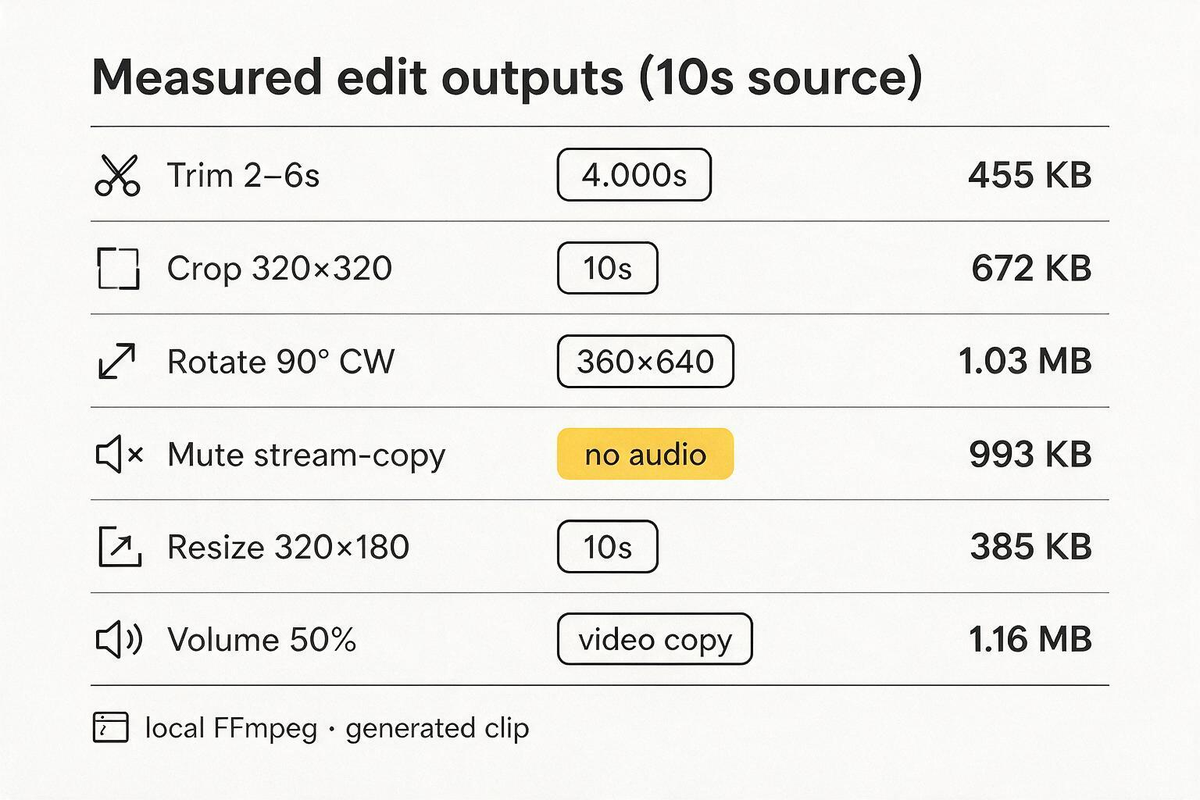
Ten-second H.264/AAC source (1,161,779 bytes) → local FFmpeg on October 15, 2026:
| Operation | Result | Size |
|---|---|---|
| Trim 2–6 s | 640 × 360, 4.000 s | 454,773 |
| Crop 320×320 | 320 × 320, 10 s | 671,793 |
| Rotate 90° CW | 360 × 640, 10 s | 1,026,322 |
| Mute (video copy) | 640 × 360, no audio | 993,368 |
| Resize 320×180 | 320 × 180, 10 s | 384,814 |
| Volume 50% (video copy) | 640 × 360 + quieter AAC | 1,161,792 |
Probe streams and commands: edit-and-extract-20261015.json.
Workflow checklist
- Name the platform limit (pixels, seconds, megabytes, aspect).
- Preview the source — duration, orientation, whether there is audio.
- Apply one change, download, open the result in a player.
- Repeat from the original if you need another operation, or continue a linear pass if the tool chain supports it.
- Compress only at the end, to a number you can verify (
ffprobeor the file’s size on disk).
Common problems
The video still looks sideways after “fix”
You cropped or mirrored instead of rotating, or the player ignores rotation metadata. Re-export with an explicit 90° rotate (our rotate tool writes pixels, not only a flag).
Crop made the file huge
Crop alone does not shrink bitrate. After a crop, resize if needed, then compress.
Mute removed the wrong thing / sound is still there
Confirm the download is the muted export (filename suffix *-muted.mp4 on our tool) and that you did not download the original. Stream-copy mute must show zero audio streams in ffprobe.
I only wanted the audio
That is extraction, not video editing: extract audio from video.
Choosing a tool when several could work
Some problems admit more than one “valid” fix. Use the most specific tool that matches the platform’s rule:
| Platform message | Best first try | Why |
|---|---|---|
| “Video too long” | Trim | Duration is the constraint |
| “Wrong aspect ratio” | Crop with a preset | Framing is the constraint |
| “File too large” | Compress to a target MB | Bytes are the constraint |
| “Resolution too high” | Resize | Pixels are the constraint |
| “Remove audio” / “muted clips only” | Mute | Stream layout is the constraint |
| “Orientation wrong” | Rotate / flip | Transform is the constraint |
If two rules apply (too long and too big), fix length first, then compress the shorter cut.
Desktop FFmpeg equivalents
For repeatable offline work, the same jobs map to standard filters (official docs: ffmpeg-filters):
ffmpeg -ss 2 -to 6 -i in.mp4 -c:v libx264 -pix_fmt yuv420p -c:a aac trim.mp4
ffmpeg -i in.mp4 -vf crop=320:320:160:20 -c:v libx264 -pix_fmt yuv420p -c:a aac crop.mp4
ffmpeg -i in.mp4 -vf transpose=1 -c:v libx264 -pix_fmt yuv420p -c:a aac rot.mp4
ffmpeg -i in.mp4 -c:v copy -an mute.mp4
ffmpeg -i in.mp4 -vf scale=320:180 -c:v libx264 -pix_fmt yuv420p -c:a aac small.mp4
These are the commands behind the measurement table. They are not the only correct syntax (filters and codecs vary by build).
What we would not do in a browser
- Re-encode the same file five times for five separate “quick fixes.”
- Crop after a heavy compress if you still have the original (generational loss).
- Rely on “auto” quality when a hard megabyte cap applies — set a target size and verify the download.
How we tested, and what we did not
Commands and ffprobe data are in the evidence JSON linked above. We used one generated clip and local FFmpeg — not a survey of every online editor. We did not measure cloud queue times, mobile network performance, or subjective picture quality after multiple re-encodes. Product limits (guest quotas, link lifetime) are as published on the site on October 15, 2026.
Sources
- FFmpeg documentation — filters (
crop,scale,transpose,volume), stream copy, seeking - FFmpeg filters index
- Our dated measurement file
- Related: Trim · Crop · Rotate/flip · Mute · Resize · Edit audio · Target size